Cheat sheet
Blender Sculpting Hotkeys: Complete Cheat Sheet for Sculpt Mode
In Blender Sculpt Mode, press F and drag to change brush radius, Shift + F to change brush strength, hold Shift to smooth, and hold Ctrl to invert most brush effects. This Blender sculpting hotkeys cheat sheet covers every core shortcut for brush size, strength, smoothing, masking, Face Sets, hiding geometry, and Dyntopo or Remesh, plus how to verify any binding inside your own Keymap, since bindings can be customized.
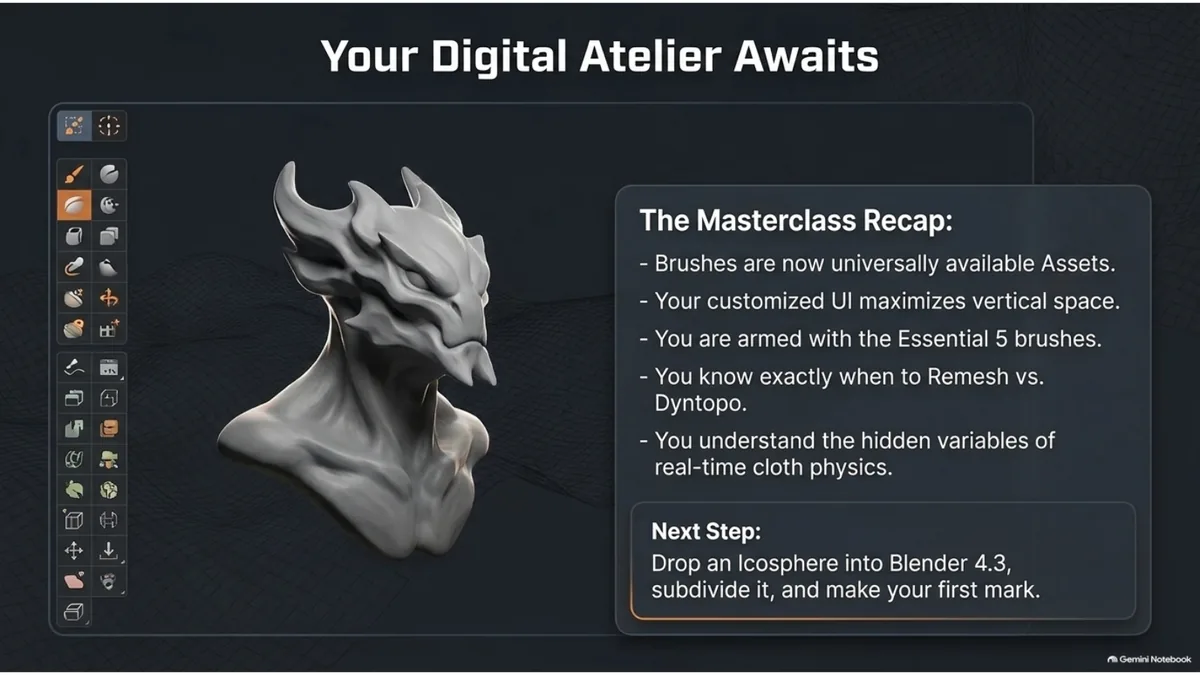
Blender 4.3 sculpting recap card
The masterclass recap slide works as a visual reminder for the key sculpting ideas around this hotkey article: brushes now live as assets, a customized interface saves vertical space, and the most important shortcuts are the ones that support brush control, masking, and Remesh decisions.
Sculpt Mode hotkeys cheat sheet
The four essentials cover most sculpting sessions: brush radius, brush strength, temporary smooth, and invert. The table below adds masking, Face Sets, hiding, and mesh-density shortcuts so you have the full Sculpt Mode keymap in one place.
| Action | Shortcut | Notes |
|---|---|---|
| Brush radius (size) | F, drag, click to confirm | Works with the active sculpt brush |
| Brush strength | Shift + F, drag, click to confirm | Controls intensity, independent of size |
| Temporary smooth | Hold Shift while stroking | Releases back to your brush when let go |
| Invert brush effect | Hold Ctrl while stroking | Most brushes support it, some do not |
| Hide part of the mesh | H | Hides the current Face Set or cursor region |
| Hide everything except selection | Shift + H | Useful for isolating a body part |
| Reveal all hidden geometry | Alt + H | Restores every hidden region |
| Grow / shrink visible region | Page Up / Page Down | Expands or contracts the hidden boundary |
| Switch to the Mask tool | M | Then drag to paint a mask |
| Invert the current mask | Ctrl + I | Flips masked and unmasked areas |
| Clear the mask | Alt + M | Removes the mask entirely |
| Toggle Dynamic Topology | Ctrl + D | See the Dyntopo vs Remesh guide |
| Voxel Remesh | Ctrl + R | Uses the current voxel size in the Remesh panel |
If you use a large brush library like the 3000+ Blender Sculpting Brushes Bundle, these shortcuts matter even more, because you will switch between pores, folds, rocks, wood, damage, and creature brushes without slowing down.
Core sculpting hotkeys (official, with video demos)
These are the must-know shortcuts for sculpting and are documented in Blender manuals. Learn these first before you map custom keys.
Press F, then drag the mouse to change brush size while sculpting.
Press Shift + F, then drag to control brush intensity.
Hold Shift while sculpting to smooth without switching tools.
Hold Ctrl to invert many brush behaviors during a stroke.
Start with a large radius and low strength to establish the main form, then reduce brush size for secondary details. Only use high strength for intentional cuts, seams, cracks, or deep wrinkles. Brush specific hotkeys can be changed via the Keymap, so the safest approach is to learn these core actions and then verify any brush shortcut directly in your Keymap settings.
Mask and Face Sets shortcuts
Masking protects part of the mesh from sculpting, and Face Sets let you isolate or hide regions without painting a mask each time. Both are essential once a sculpt has more than one distinct area, such as a head versus a body, or armor versus skin.
Dyntopo and Voxel Remesh shortcuts
Ctrl + D toggles Dynamic Topology on and off in Sculpt Mode, and Ctrl + R applies a Voxel Remesh using the current voxel size in the Remesh panel. Both change the density of your mesh instead of the brush itself, so they matter as much as any brush hotkey once you move past blockout.
For blockout versus fine-detail settings, why Dyntopo slows Blender down on dense meshes, why Voxel Remesh can erase detail, and before-and-after comparisons, see the full Dyntopo vs Voxel Remesh guide.
Hide and reveal shortcuts
These shortcuts control hiding and revealing parts of the mesh during Sculpt Mode.
How to verify hotkeys inside Blender
Blender hotkeys can be customized, so the official truth for your setup is the Keymap. These steps let you confirm any sculpt shortcut, including Mask, Face Set, and Remesh bindings, in seconds.
FAQ
What is the Blender brush size shortcut?
Press F in Sculpt Mode and drag the mouse, then click to confirm. This resizes the active sculpt brush without opening the Tool Settings panel.
How do I change brush strength in Blender?
Press Shift + F and drag, then click to confirm. This adjusts intensity independently from brush size.
What is the Mask shortcut in Blender sculpting?
Press M to switch to the Mask tool, then drag to paint a mask. Use Ctrl + I to invert it and Alt + M to clear it.
Is there a hotkey for Dyntopo or Voxel Remesh?
Ctrl + D toggles Dynamic Topology and Ctrl + R applies a Voxel Remesh using the current voxel size. Both are default Sculpt Mode bindings in recent Blender versions.
Do brush hotkeys differ between Blender versions?
Core hotkeys like F, Shift + F, Shift, and Ctrl are consistent, but brush specific shortcuts can vary because they are defined by the Keymap.
Why is there no official list for every brush key?
Blender documents core behaviors, but key bindings are part of the Keymap system and can be customized. The most accurate source is the Keymap shipped with your Blender build and any changes you make.
What is the fastest way to learn sculpting hotkeys?
Learn brush size, strength, smooth, and invert first, then bind your 6-10 favorite brushes to single keys in Preferences → Keymap. This builds muscle memory faster than memorizing a full list.
Should I use these shortcuts with custom brush packs?
Yes. Brush packs are much faster to work with once radius, strength, smooth, and invert are muscle memory, since you are constantly switching between pores, folds, cracks, and surface detail brushes.
Official sources
These references are from Blender manuals and keymap documentation. Use them to cross check and cite.
Useful links
Install brushes in Blender · Blender vs ZBrush comparison · Best Blender sculpting brushes list · Dyntopo vs Voxel Remesh guide
Browse all Blender sculpting brushes · Explore the 3000+ sculpting brushes bundle