Sculpt control
Symmetry and Mirror Sculpting in Blender
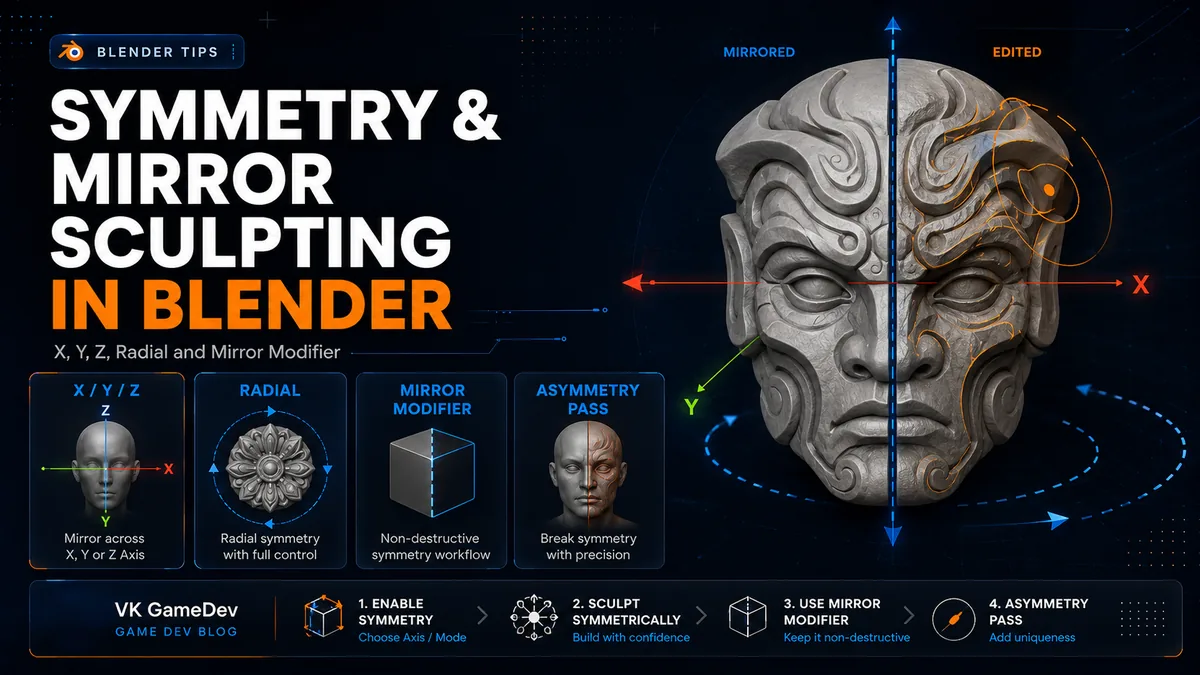
Most characters, creatures and props begin with symmetry. Blender gives you two different systems for that job: live sculpt symmetry and the Mirror modifier. They solve different problems, and mixing them up is where many sculpting workflows get messy.
Quick answer
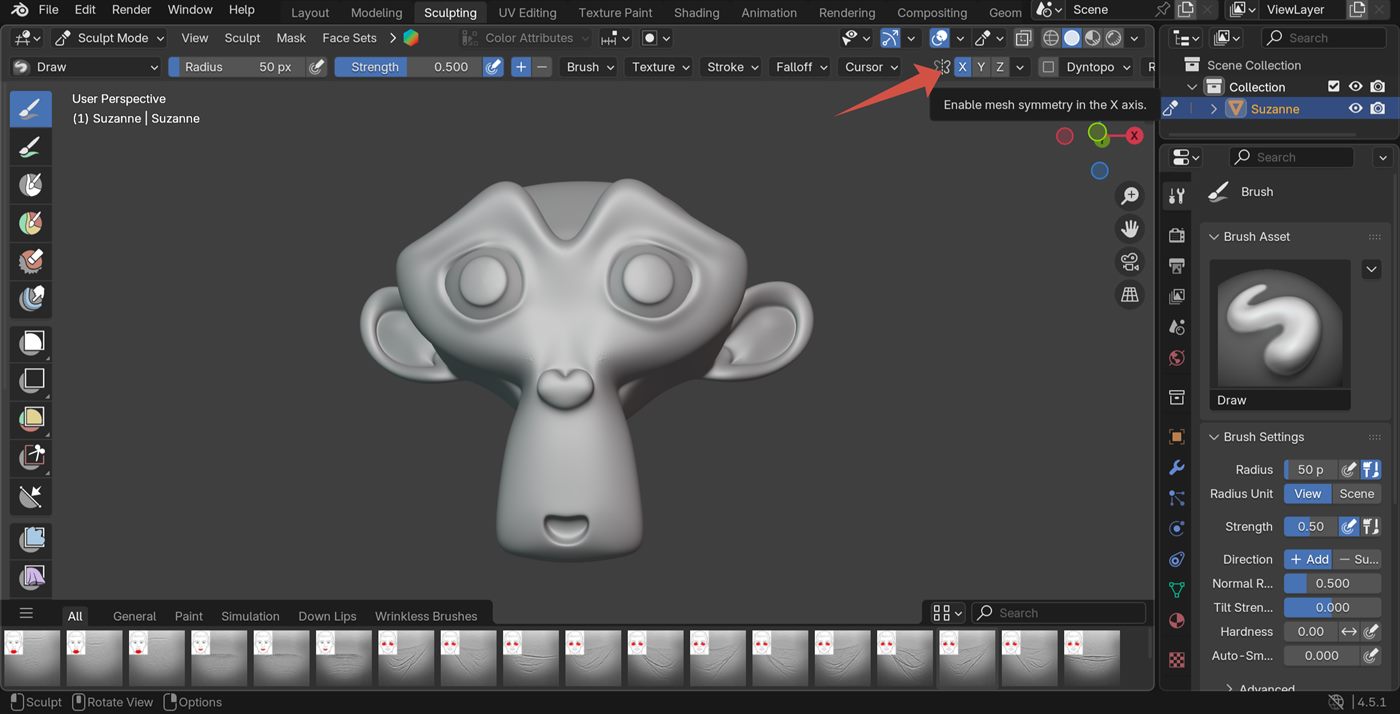
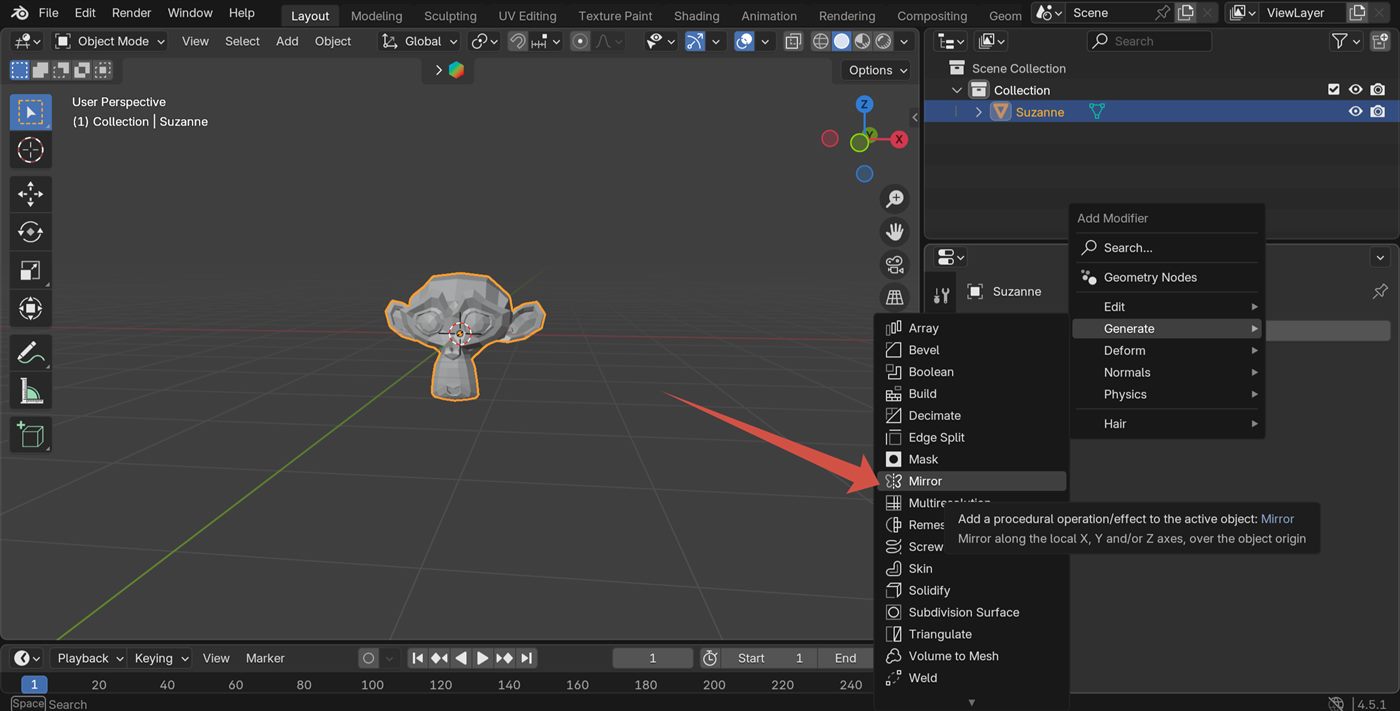
Use X, Y or Z symmetry in Sculpt Mode when you already have a full mesh and want live mirrored strokes. Use the Mirror modifier earlier, when you want to build or sculpt only half of the mesh and let Blender generate the other half.
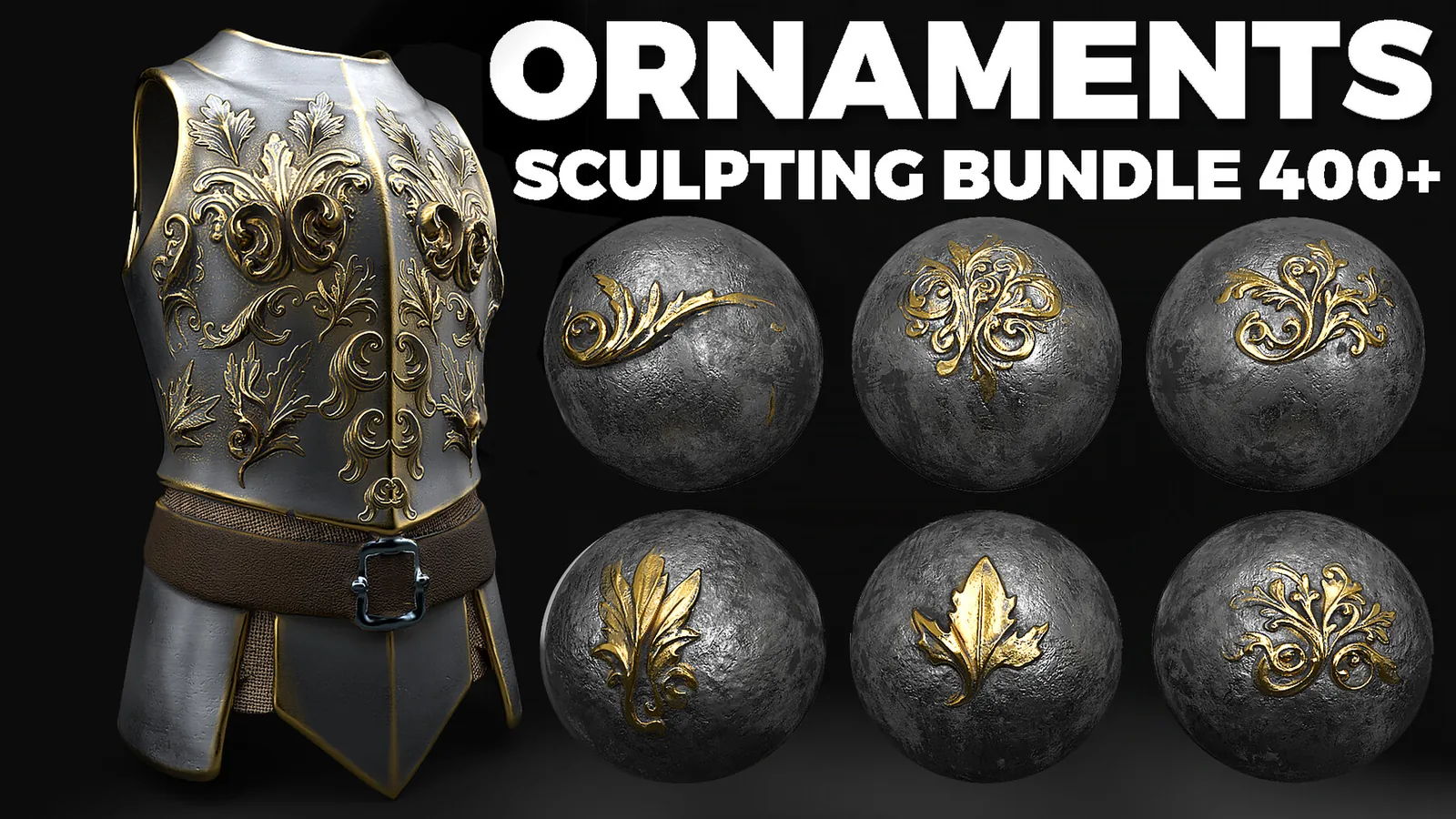
For repeated trim, decorative panels or circular segments, radial symmetry plus a focused brush pack such as Ornamental Sculpting Brushes is much faster than manually placing every stamp.
Which symmetry tool does what
Where symmetry saves the most time
Characters and creature heads
Use X symmetry to block the skull, eyes, jaw line and neck connection. Keep it on until the big forms are stable, then switch it off for facial scars, one-sided compression, or broken surface detail.
Ornaments and trim
Radial symmetry is where decorative brushes become much more valuable. One border, leaf, relief or ornamental stamp can repeat cleanly around a shield, medallion, collar or fantasy prop instead of being placed dozens of times by hand.
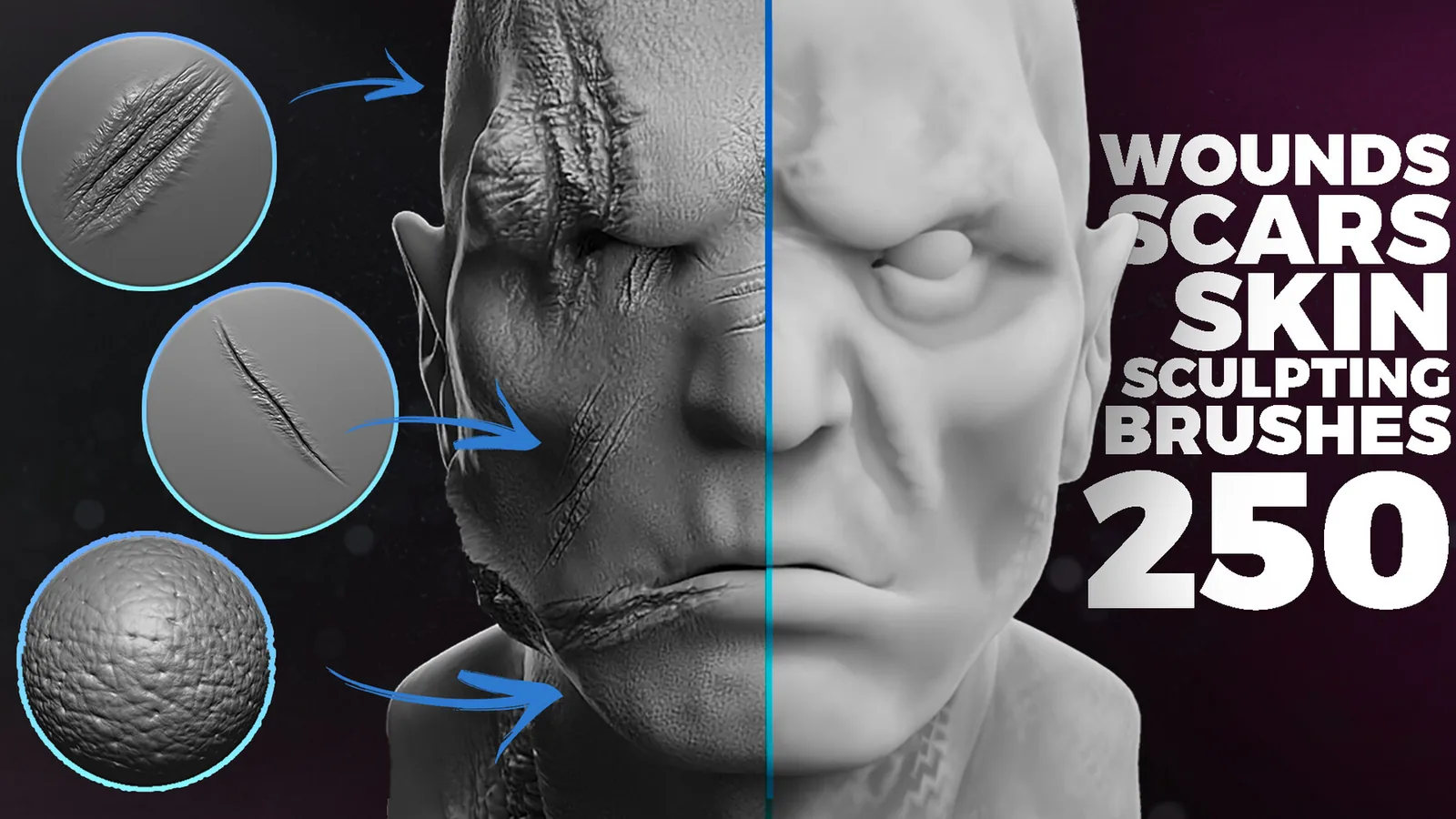
Damage and scars after symmetry
Symmetry is efficient for base form, but mirrored scars and wear look artificial. Finish the clean structure first, then turn symmetry off and use asymmetric damage passes.
Common mistakes
Useful brush packs for symmetry workflows
Useful links
Browse all Blender sculpting brushes·Browse ornament brushes
FAQ
Should I use the Mirror modifier or sculpt symmetry first?
Use the Mirror modifier during base mesh creation. Use sculpt symmetry once you are shaping or detailing the full object.
What is radial symmetry best for?
It is best for circular repeating detail such as trim, spikes, decorative panels and ornamental repetition.
When should I turn symmetry off?
Turn it off for damage, scars, chipped edges and any intentional asymmetry that should feel believable.