Shortcut guide
Blender Brush Size Shortcut
The fastest way to sculpt in Blender is to stop opening panels for every brush adjustment. Learn the brush size, strength, smooth and invert shortcuts first, then your sculpting workflow becomes much faster.
Quick answer
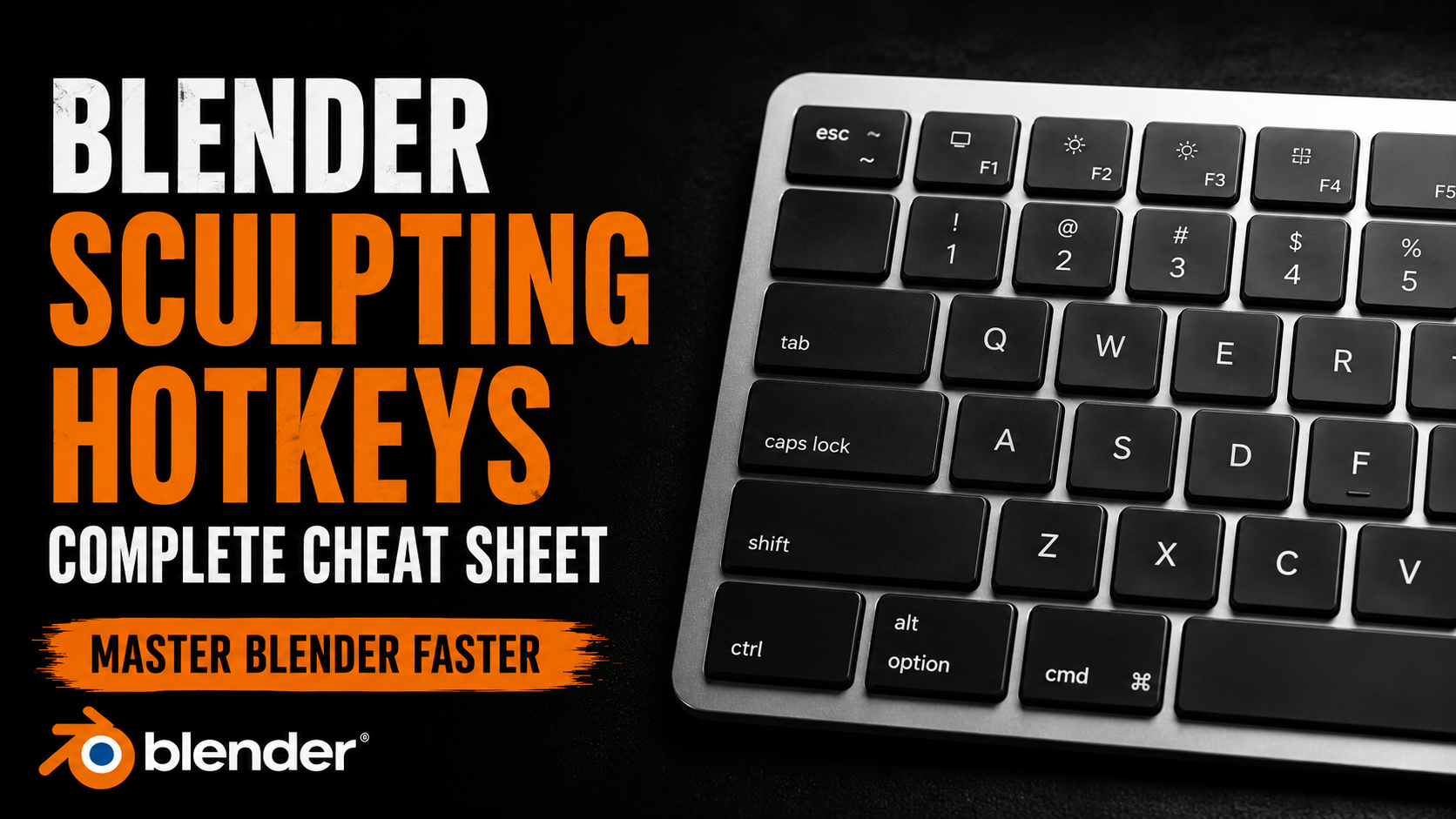
In Blender Sculpt Mode, press F and drag to change brush size. Press Shift + F and drag to change brush strength. Hold Shift while sculpting to temporarily smooth the surface, and hold Ctrl to invert many brush effects.
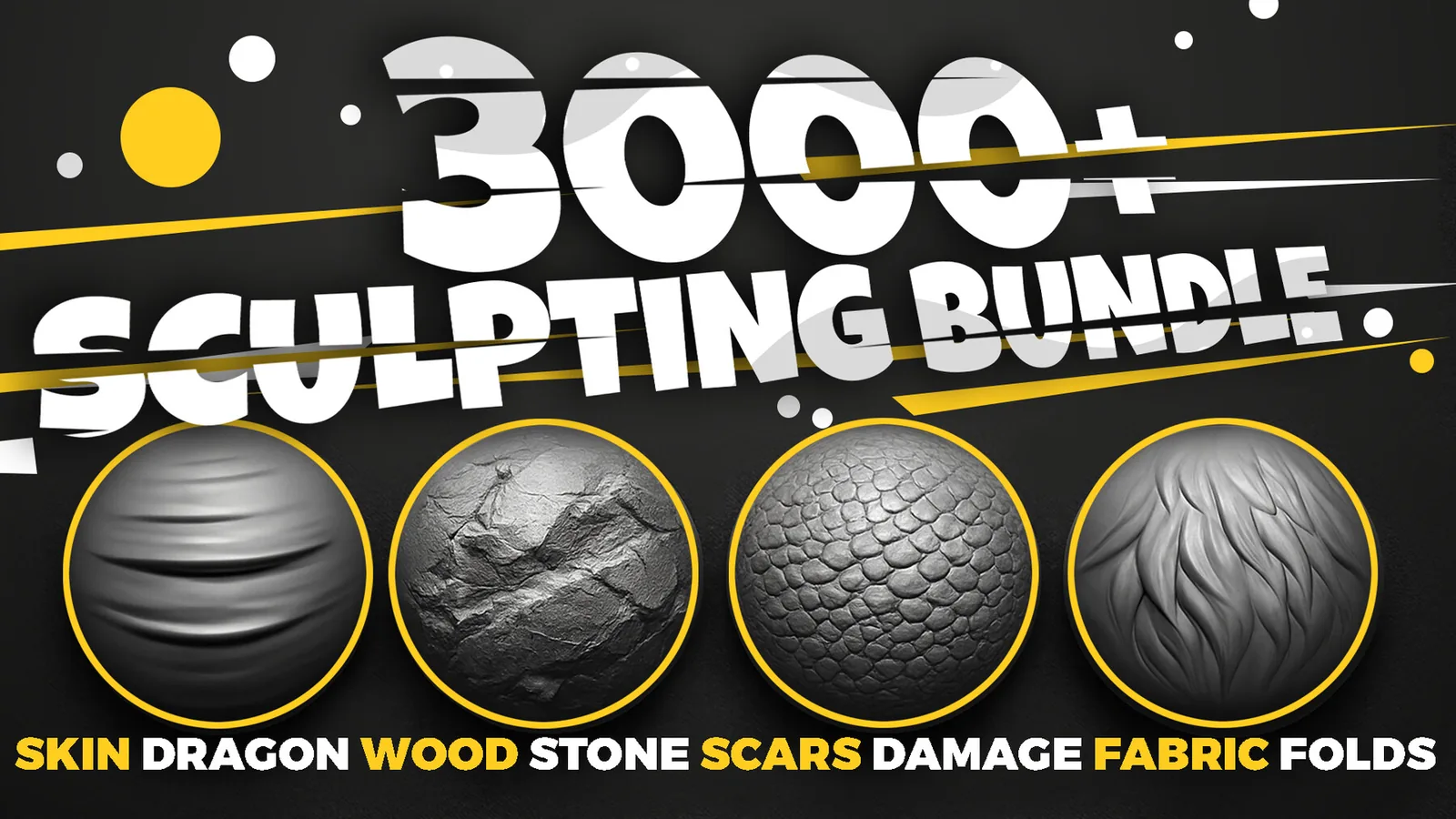
If you use a large brush library like the 3000+ Blender Sculpting Brushes Bundle, these shortcuts matter even more because you will switch between pores, folds, rocks, wood, damage and creature brushes without slowing down.
Brush size and strength cheat sheet
Resize the sculpt brush without leaving the viewport.
Adjust intensity before adding pores, folds, cuts or cracks.
Smooth between stronger alpha strokes to blend surface detail.
Switch the stroke direction for brushes that support inverted behavior.
How to use the shortcuts in a real sculpt
Start with a large radius and low strength to establish the main form. Then reduce brush size for secondary details. Only use high strength for intentional cuts, seams, cracks or deep wrinkles.
This is where ready-made brush packs save time. For example, a skin pore brush should usually be small and subtle, while a rock crack brush can use stronger depth. A fabric fold brush often needs a larger radius first, then a smaller compression pass on top.
Recommended next steps
FAQ
What shortcut changes brush size in Blender?
Press F in Sculpt Mode and drag to adjust brush radius.
What shortcut changes brush strength?
Press Shift + F and drag to adjust strength.
Why does brush size matter for custom alphas?
Alpha brushes can look repeated or too strong if the radius is wrong. Resize the brush constantly so pores, folds, cracks and fabric details match the scale of the model.