Sculpt brush manager + included library
Brush Shelf – Sculpting Brush Manager for Blender
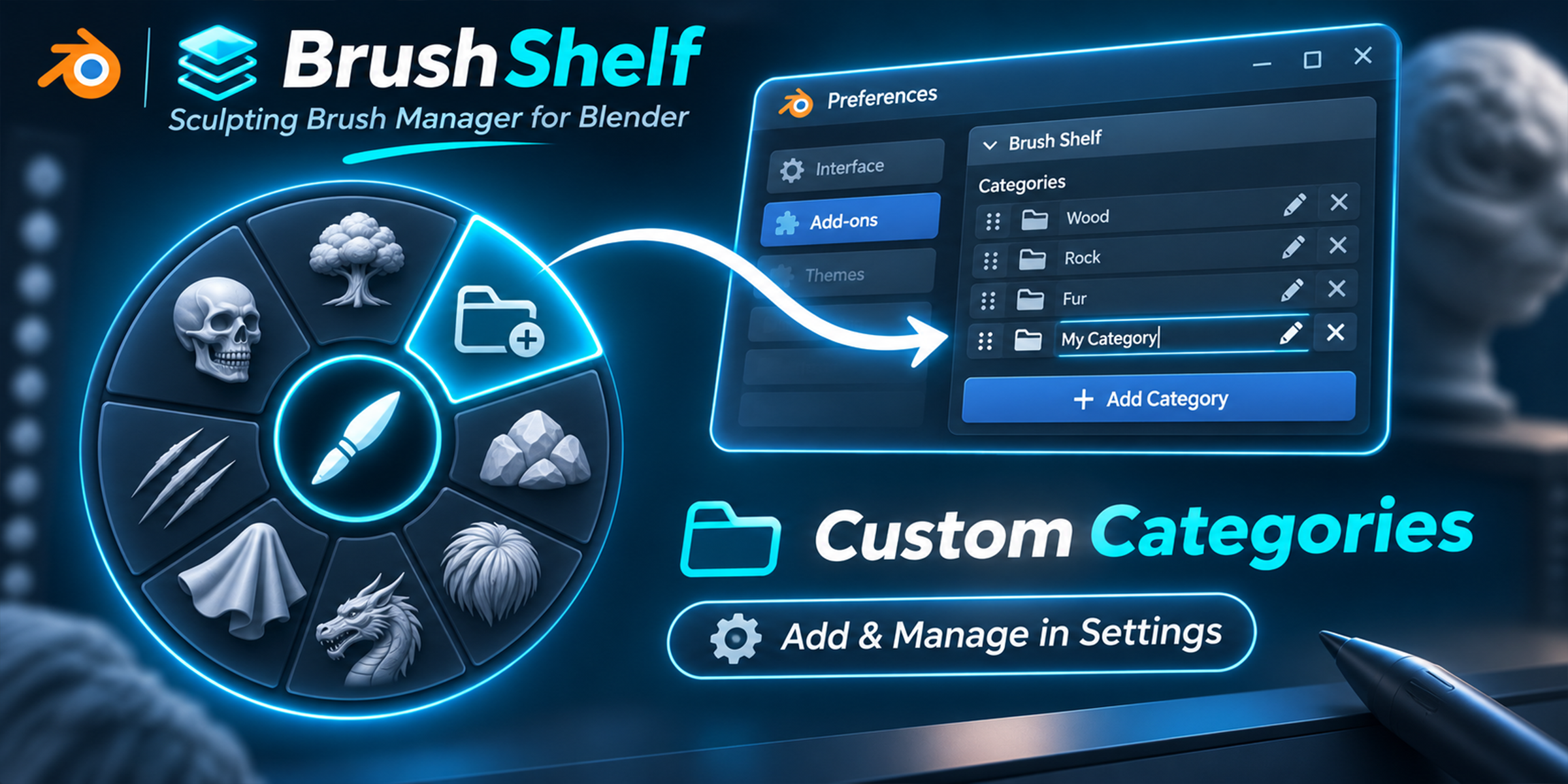
One shortcut. All your sculpting brushes. Open a visual radial menu with Q, browse categories by preview, and choose the right brush without leaving Blender's 3D Viewport.
Built for sculptors with large libraries. Brush Shelf comes with 939 ready-to-use sculpting brushes in six themed packs and lets you add your own Sculpt Brush Assets, build custom categories and pin favorite brushes.
SEE THE ADD-ON IN ACTION
Your brushes. One shortcut.
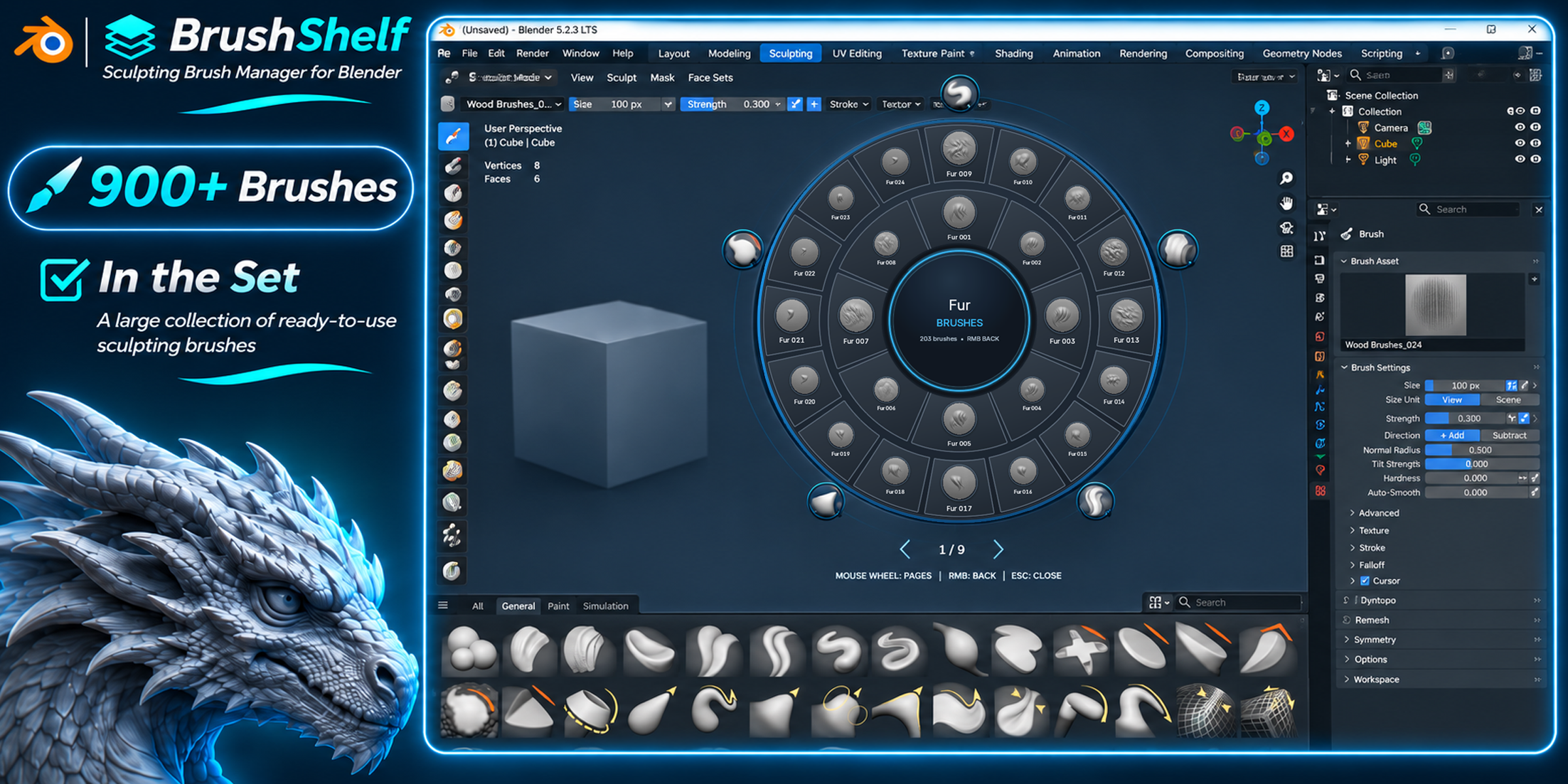
Choose a category, scroll through real brush previews and get back to sculpting. Actual Brush Shelf promotional artwork from the Superhive listing.
BUILT FOR BLENDER
A real sculpting workflow
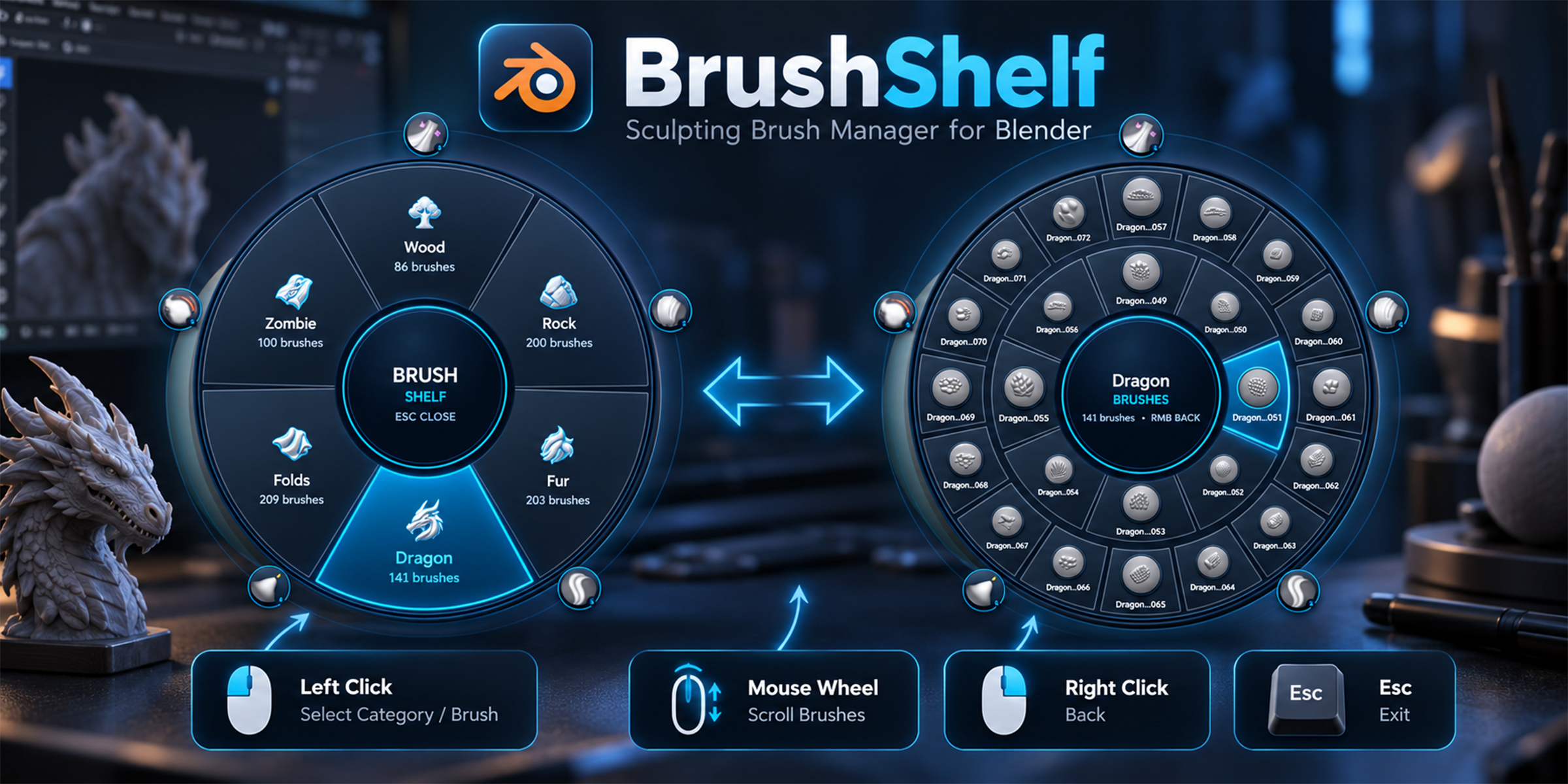
Brush Shelf opens over the Blender 3D Viewport. Navigate brushes by preview, without interrupting your work or searching through long asset lists.
Q to open · Mouse wheel to browse · Right click to go back · Esc to exit
See how it works
Brush Shelf in action
Watch the radial menu, brush previews, included libraries and favorites in an actual Blender workflow.
Designed for a faster sculpting workflow
Stop searching. Start sculpting.
Instant Q menu
Press Q in Sculpt Mode to access categories and brushes directly over your model. The shortcut is configurable.
10 category slots
Rename categories, assign brush folders and choose from 14 icons. Keep personal libraries organized.
Two brush rings
View multiple brush previews together, then scroll the mouse wheel to browse additional brushes.
5–15 favorites
Pin frequently used brushes to an outer ring for immediate access.
Your own libraries
Connect folders containing Sculpt Brush Assets. Nested subfolders are included.
Persistent preferences
Category names, library folders, icons, shortcuts and favorite assignments are saved between sessions.
Six included brush packs
939 brushes in one toolkit
Start using the included brushes immediately. The bundled libraries contain previews and packed alpha textures.
Wood
Wood grain and carved surface details.
Dragon / Scales
Reptile scales and creature surfaces.
Fabric / Folds
Cloth folds and drapery patterns.
Fur / Hair
Directional fur and hair details.
Rocks / Stone
Stone, rough rocks and surface textures.
Zombie / Creatures
Organic wounds and creature skin detail.
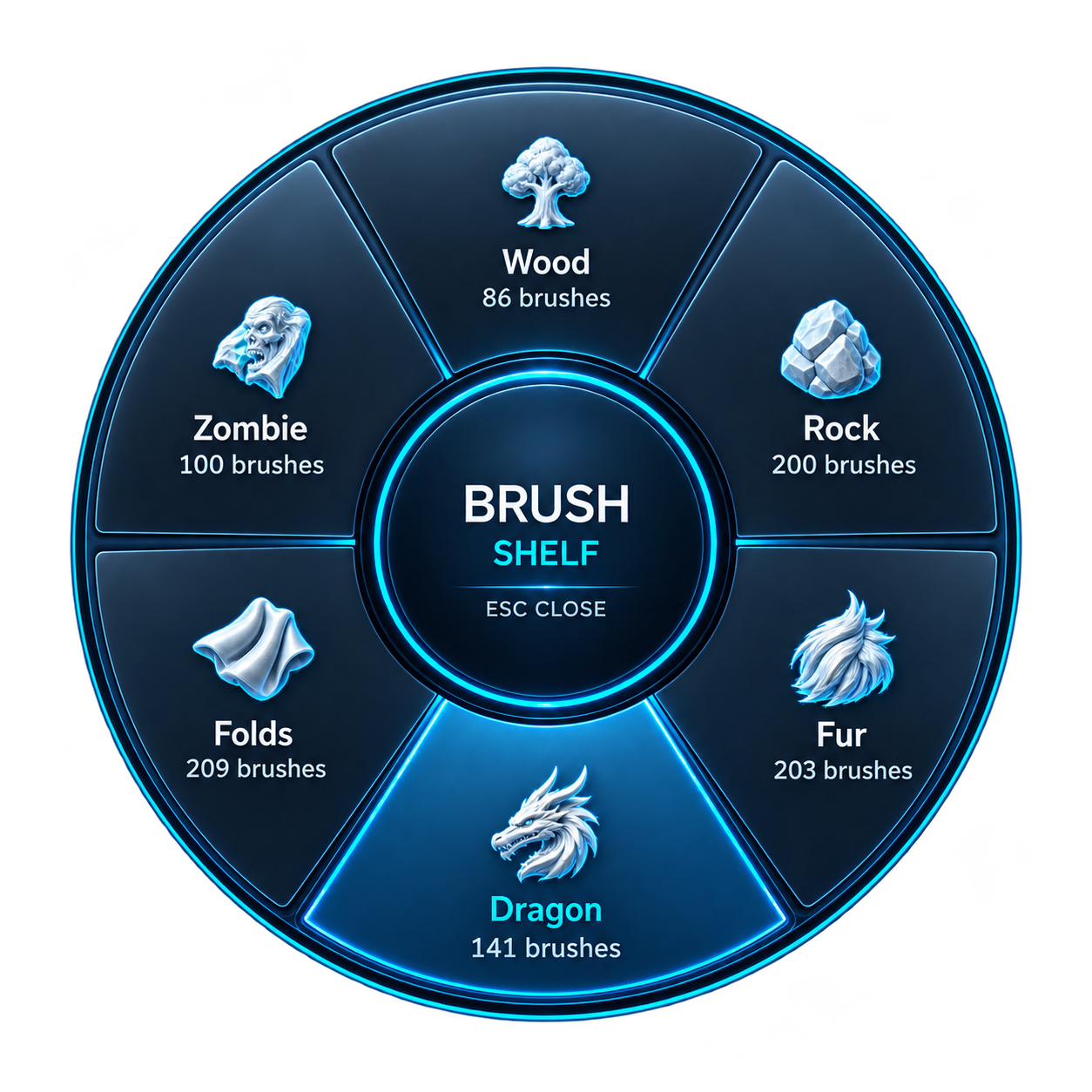
Original brush names and stroke settings are preserved. The packs are installed with the add-on.
One shortcut. Simple controls.
| Open radial menu | Q in Sculpt Mode |
|---|---|
| Choose category or brush | Left Mouse Button |
| Browse brush pages | Mouse Wheel |
| Back to categories | Right Mouse Button or Middle Mouse Button |
| Close menu | Esc |
| Blender Quick Favorites | Shift + Q |
Install once. Sculpt right away.
- Download the complete Brush Shelf ZIP from Superhive and keep it zipped.
- Open Edit → Preferences → Add-ons in Blender.
- Choose Install from Disk and select the ZIP.
- Enable Brush Shelf in Add-ons.
- Select a mesh, enter Sculpt Mode and press Q over the 3D Viewport.
Requires Blender 4.5 or newer; the Superhive listing specifies Blender 4.5–5.2. Alternative access: Sidebar (N) → Brush Shelf → Open Brush Shelf.
Frequently asked questions
Does Brush Shelf include sculpting brushes?
Yes. The add-on includes 939 brushes in six packs: Wood (86), Dragon/Scales (141), Fabric/Folds (209), Fur/Hair (203), Rocks/Stone (200), and Zombie/Creatures (100).
Can I add my own Blender brush libraries?
Yes. Assign folders to custom categories and refresh the library. Your brushes must be Sculpt Brush Assets; subfolders are supported.
Which Blender versions are supported?
Brush Shelf requires Blender 4.5 or newer. The product lists Blender 4.5–5.2 compatibility.
How do I open Brush Shelf?
Select a mesh, enter Sculpt Mode, move the cursor over the 3D Viewport and press Q. The shortcut can be changed in add-on preferences.
Do I have to install the included brush packs separately?
No. The ZIP contains the add-on and six brush packs, with previews and packed alpha textures.
Are settings and favorites saved?
Yes. Category settings, shortcuts and favorite assignments are saved between Blender sessions.