Category
Ornament Sculpting Brushes
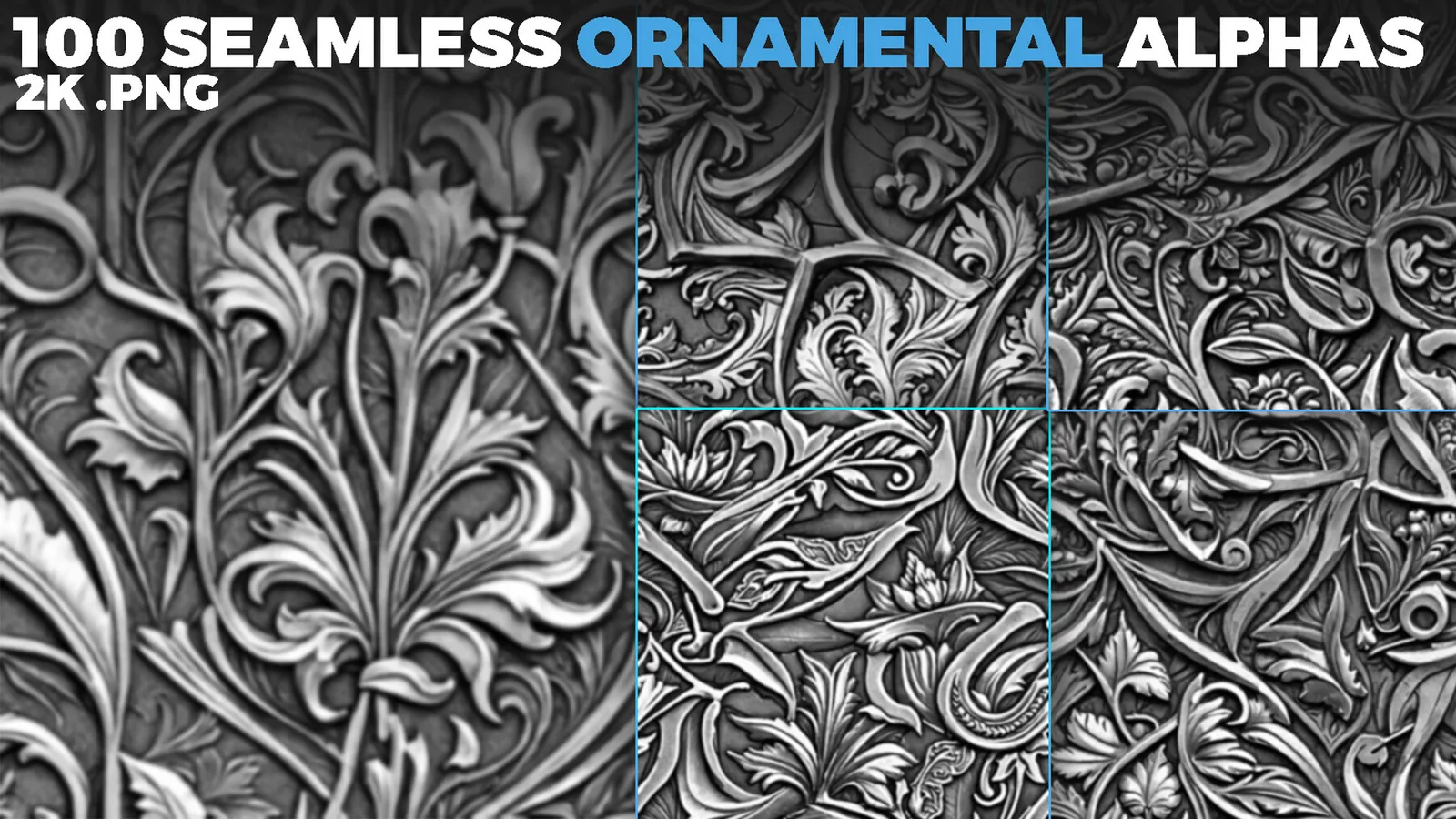
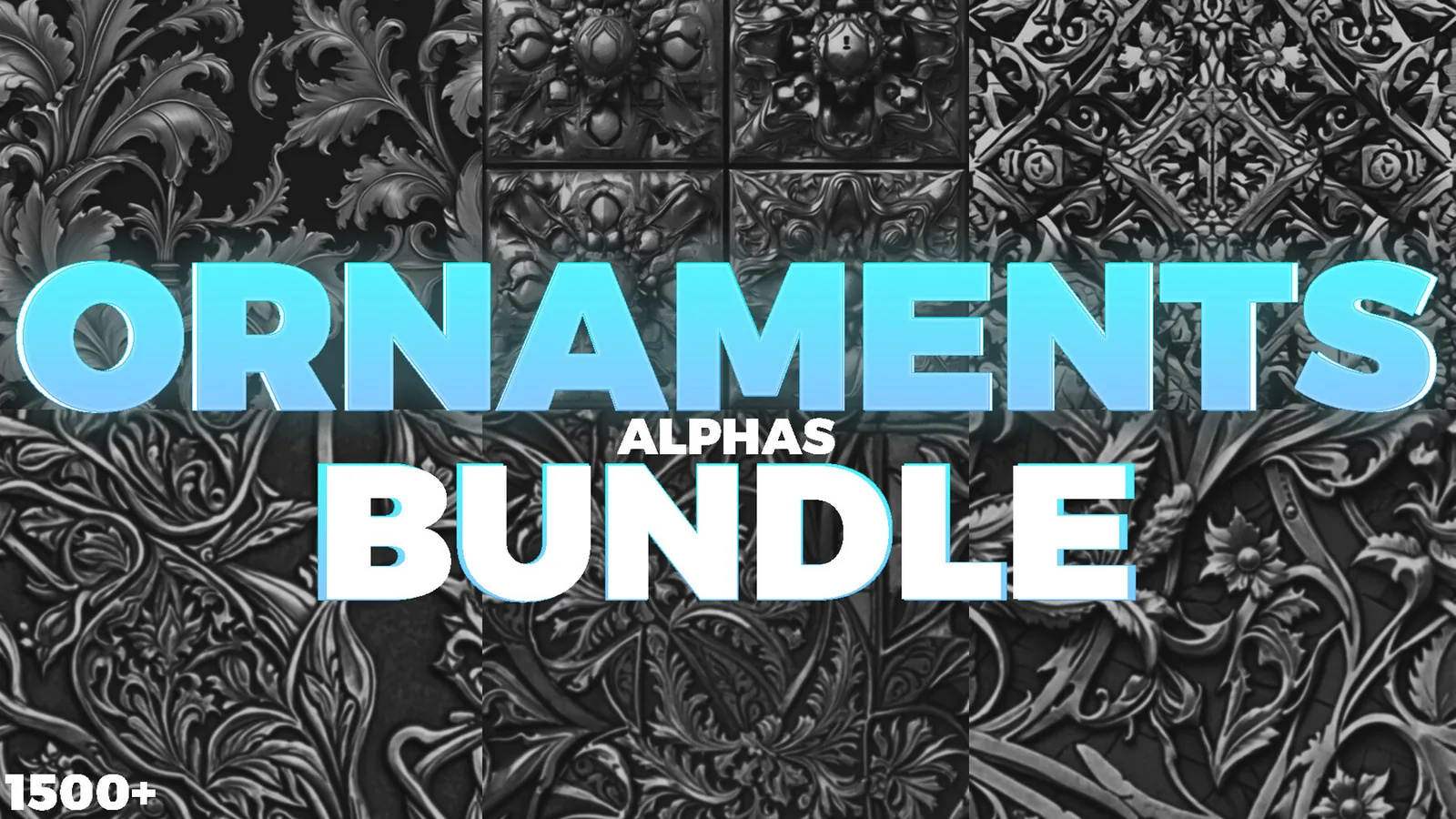
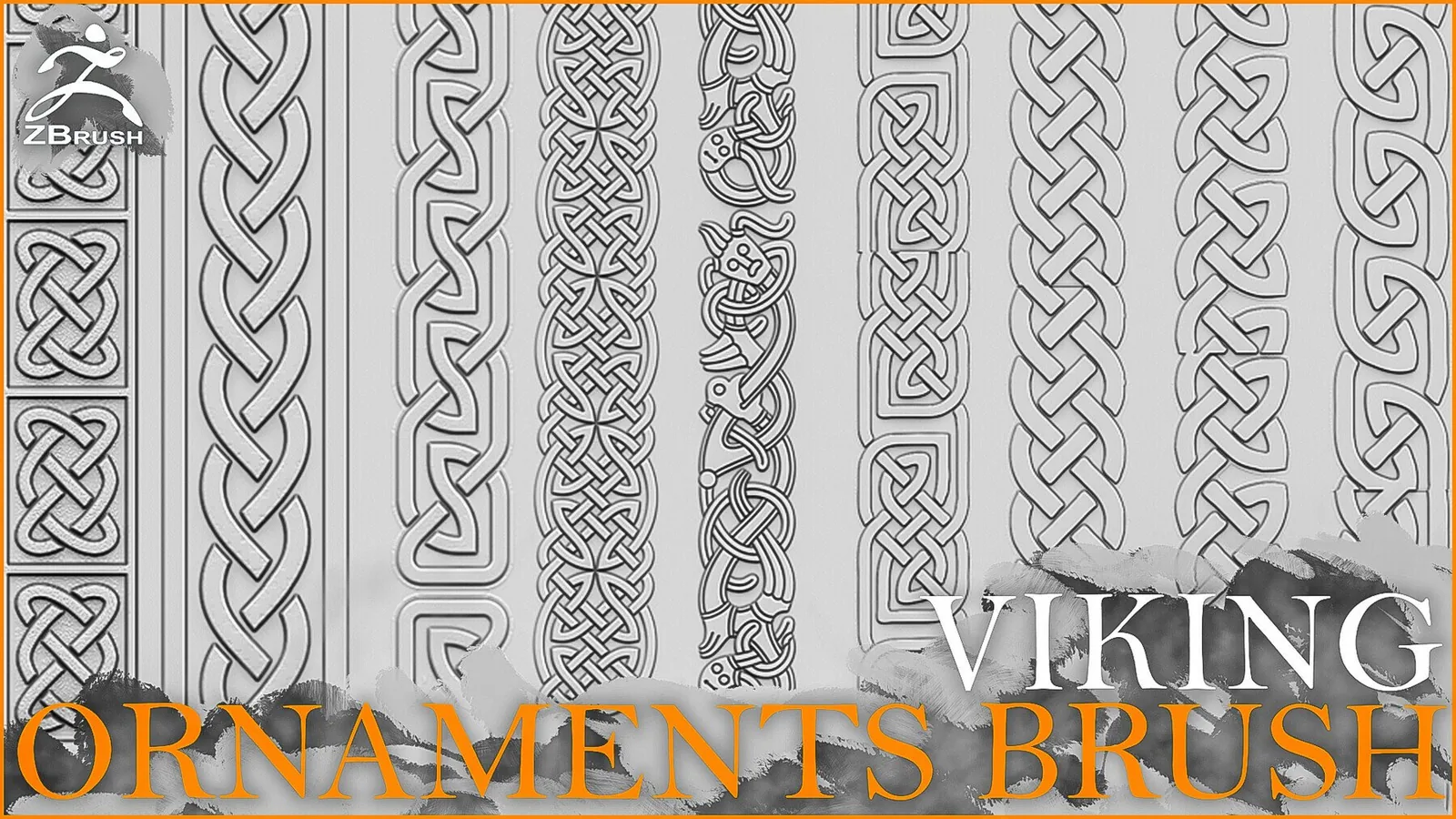
Ornament brushes are built for decorative detail: trims, reliefs, filigree, carvings, and pattern borders. They help you add rich surface design to armor, props, architecture, and costume pieces without modeling every line by hand. This category includes Blender and ZBrush packs with ornamental strokes, seamless trims, and carved alpha libraries so you can build high detail surfaces quickly.
Good ornament work depends on clarity and repetition control. The brush sets here are organized into clean families like trim borders, floral motifs, scrollwork, and stitched edges. Use them to block in the main decorative rhythm first, then add smaller accents. This keeps the design readable and avoids a surface that feels too busy.
Start ornament work with a simple blockout and a clear symmetry plan. Many decorative surfaces repeat around a central axis, so use symmetry or radial symmetry in your sculpting app to lay out the first pass. Once the rhythm is established, you can break symmetry with small offsets or wear. This method keeps the design consistent and avoids mismatched border spacing.
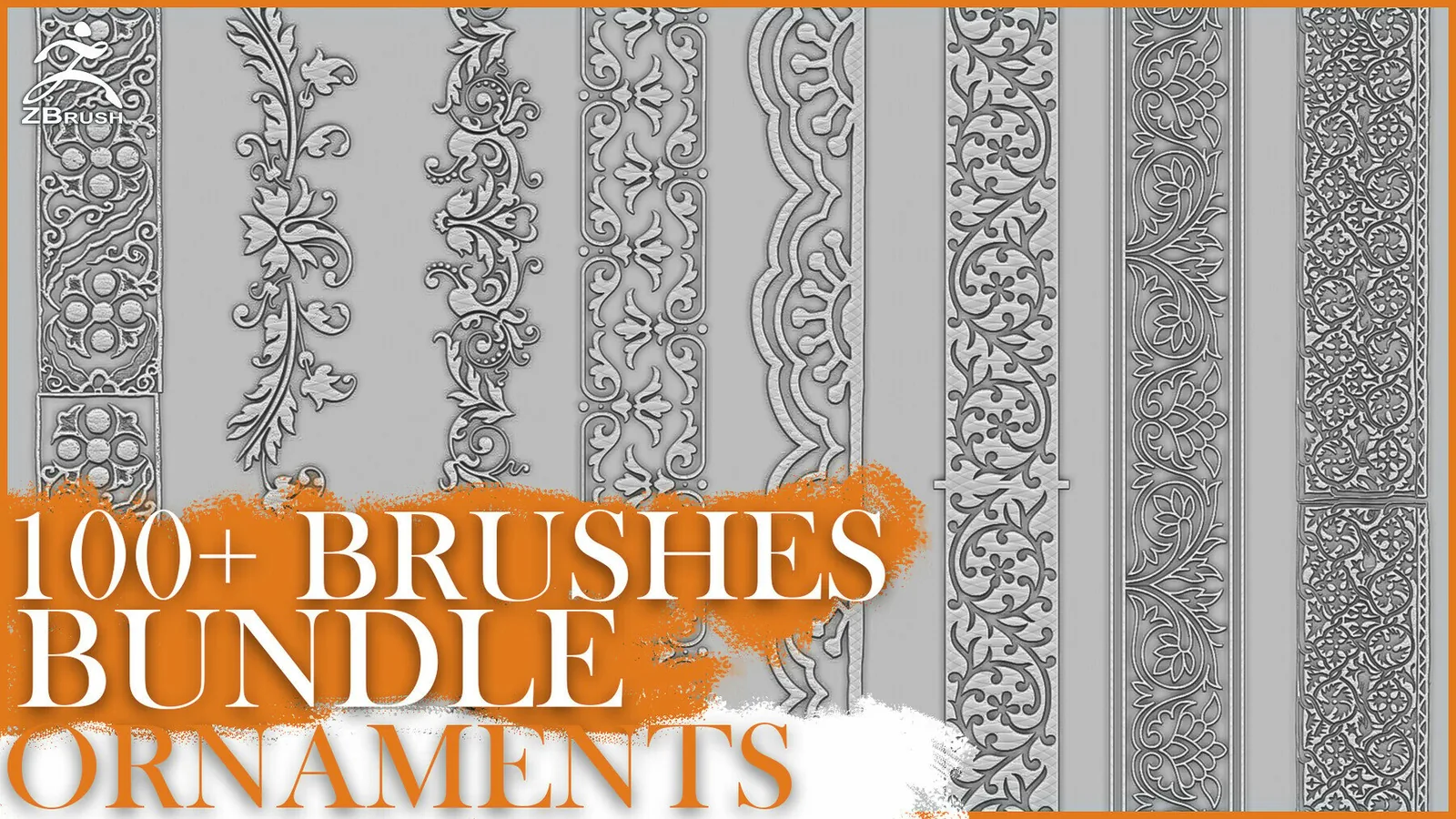
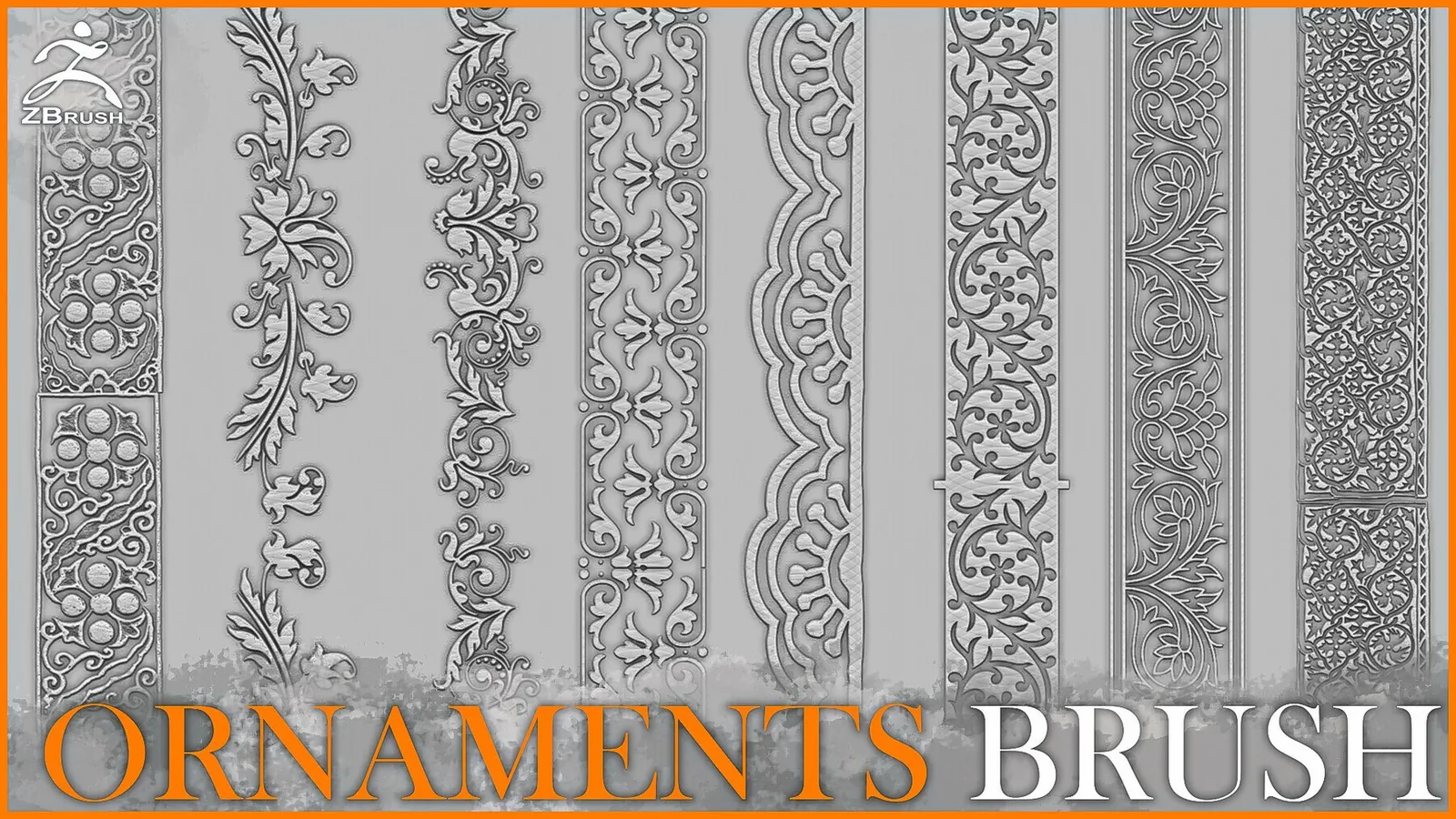
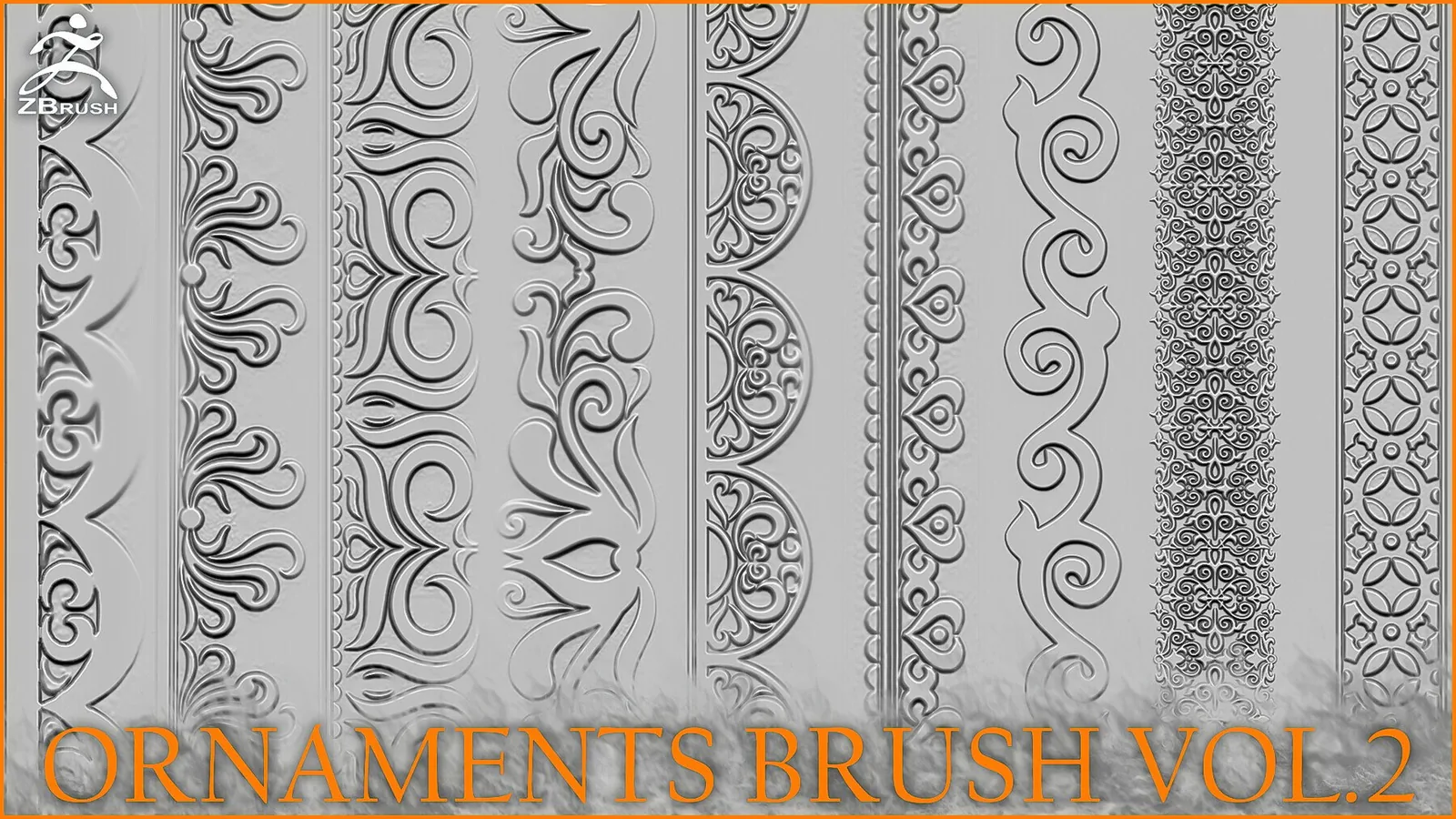
Trim brushes are ideal for borders along armor plates, belts, and architectural edges. Use a long stroke brush for the main border, then add smaller stamps at corners or intersections. Keep your brush radius constant while you lay the trim, then adjust only when you need to emphasize a focal point. Consistency makes trim work look deliberate.
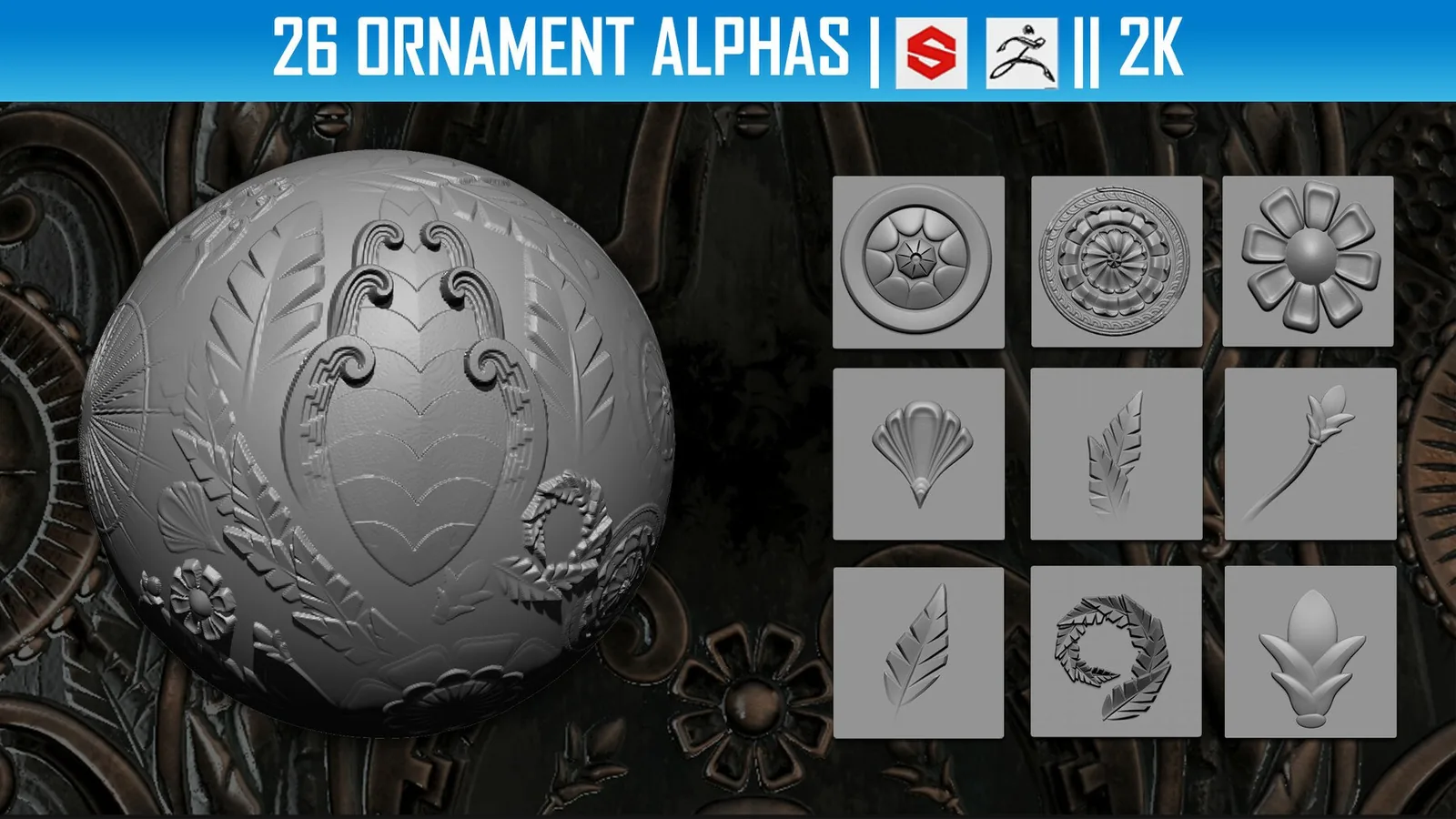
Relief patterns and filigree should follow the shape of the surface. If the underlying surface curves, rotate your alphas to match the flow. This is especially important on cylindrical objects like columns, bracers, or helmets. A slight rotation makes the ornament feel wrapped rather than stamped flat.
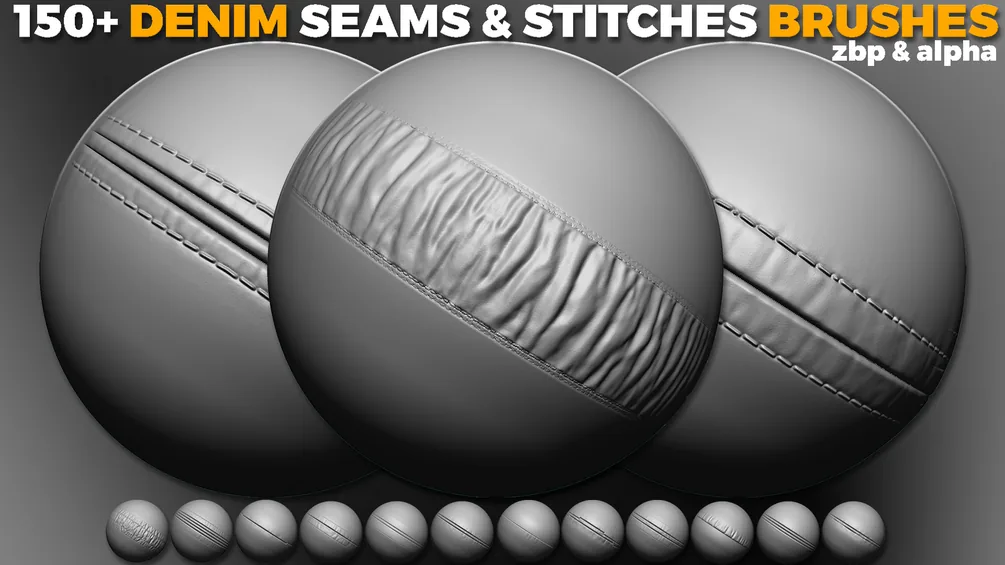
Stitches and seam details are useful for fabric trims, leather straps, and decorative stitching on costumes. Use them as a secondary layer after the main ornament shapes are in place. A light seam pass makes the surface feel constructed and adds realism without overwhelming the design.
In Blender, keep ornament packs separated by motif type so you can find them quickly in the Asset Browser. For ZBrush, create a custom brush palette with your favorite trims so you can switch between patterns without searching. The faster you can access the right motif, the more consistent your surface work will be.
Decorative detail should support the primary form, not replace it. Keep your trims and filigree at a lower depth than major hard surface edges so they do not flatten the overall shape. You can always enhance the detail in the final pass if you need more contrast.
When you bake ornament detail to textures, check for aliasing along thin lines. Some patterns are too thin for low resolution bakes, so simplify the motif or increase the texel density. For game assets, a slightly thicker line often reads better than a fragile thin one.
If you need crisp edges, mask the ornament area before stamping. This keeps the relief clean and avoids spillover onto nearby surfaces. You can also combine a smooth pass with a sharpen pass to control edge hardness. The result is cleaner trims that hold up under close lighting and specular highlights.
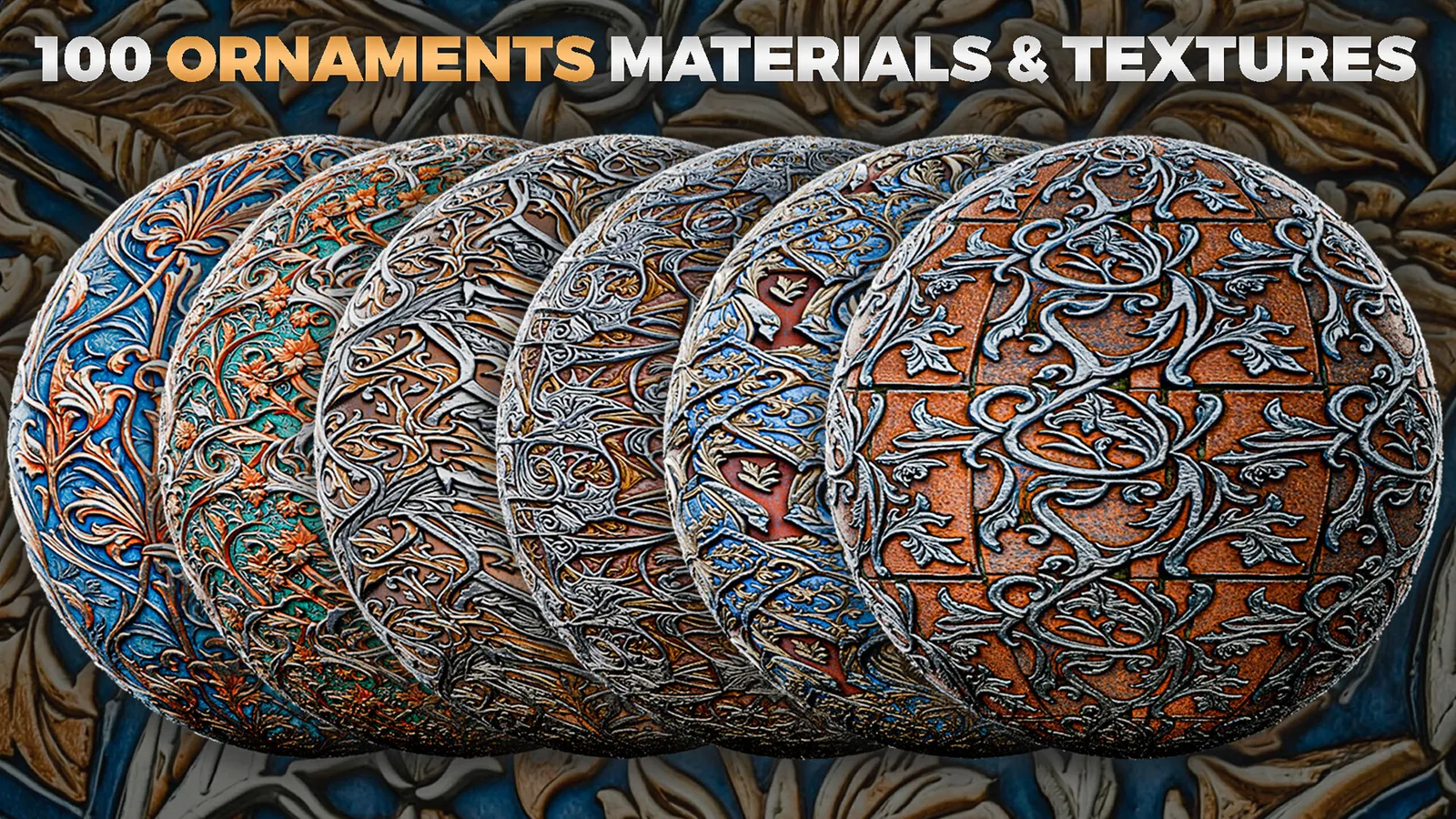
Stylized ornaments can be bold and graphic, while realistic ornaments benefit from subtle depth and wear. If you are aiming for realism, use a soft polish pass to reduce hard edges and add mild surface noise. If you are going stylized, keep edges crisp and simplify repeating motifs.
The best sets below include trim brushes, motif stamps, and stitched detail so you can build a complete ornament language. Use the examples section to see how the patterns read on different materials and forms.
Best sets
These packs are the strongest fits for ornament work. Each set is organized for fast browsing and includes previews so you can judge pattern clarity before committing.
Examples
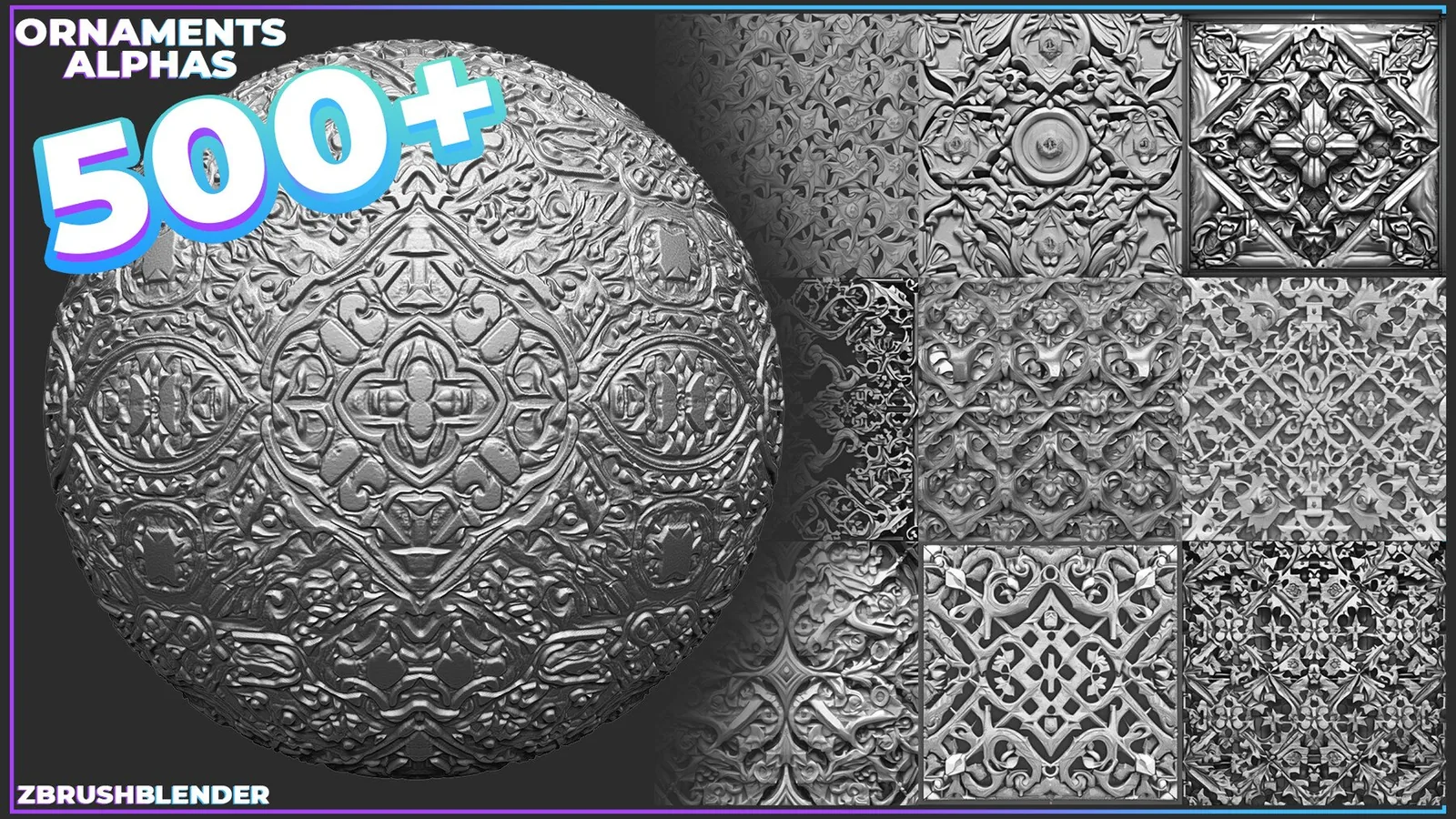
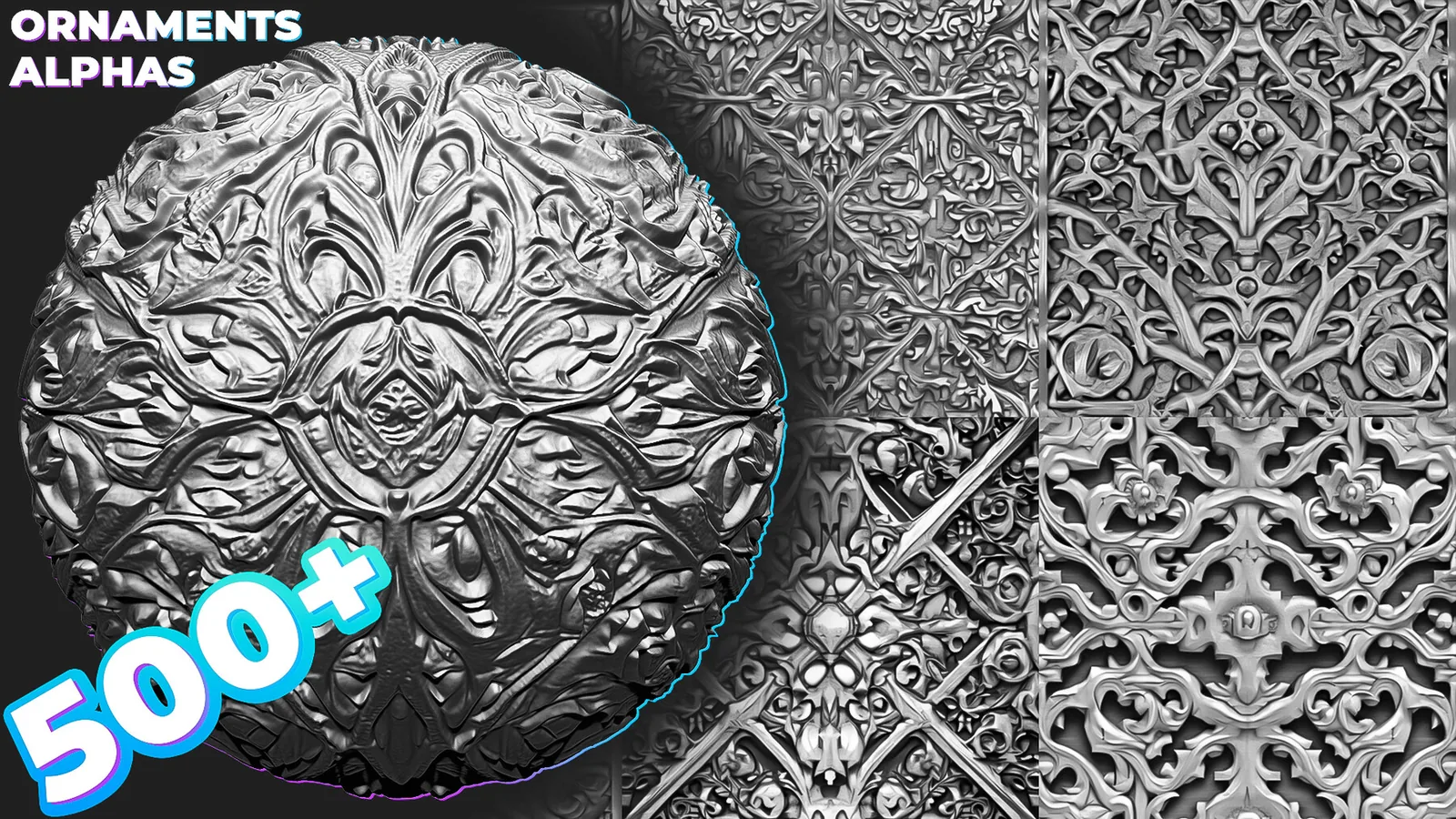
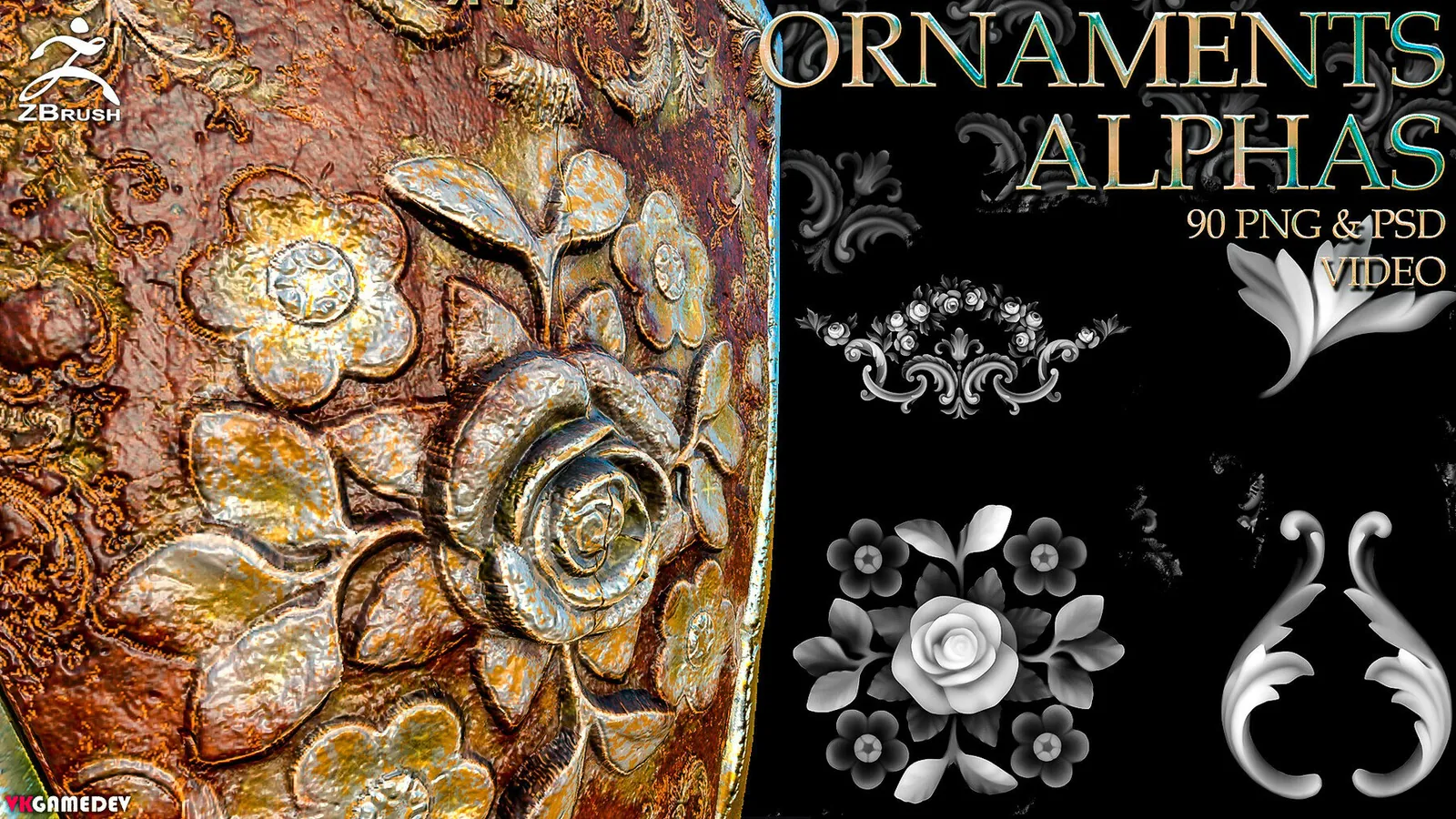
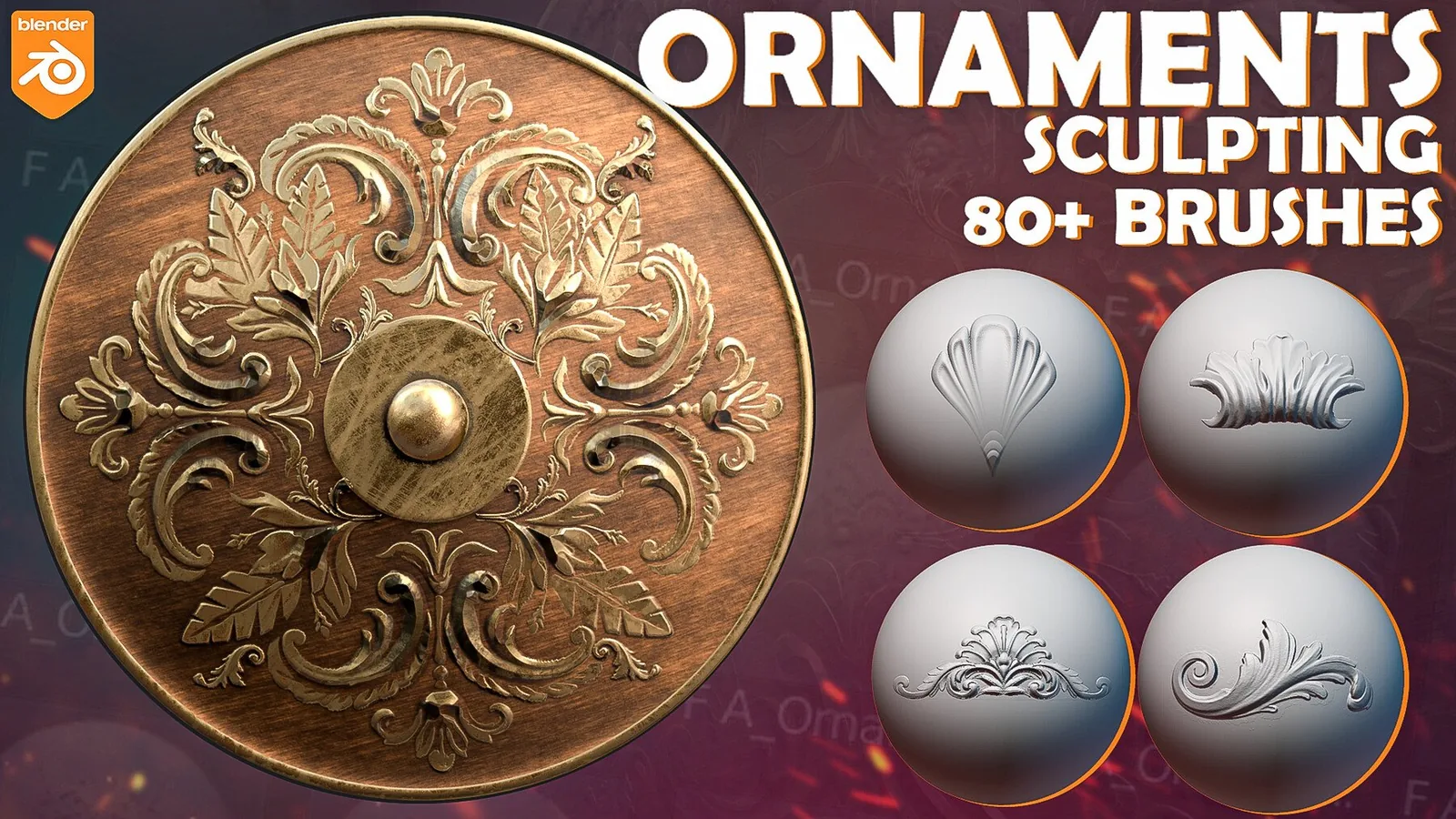
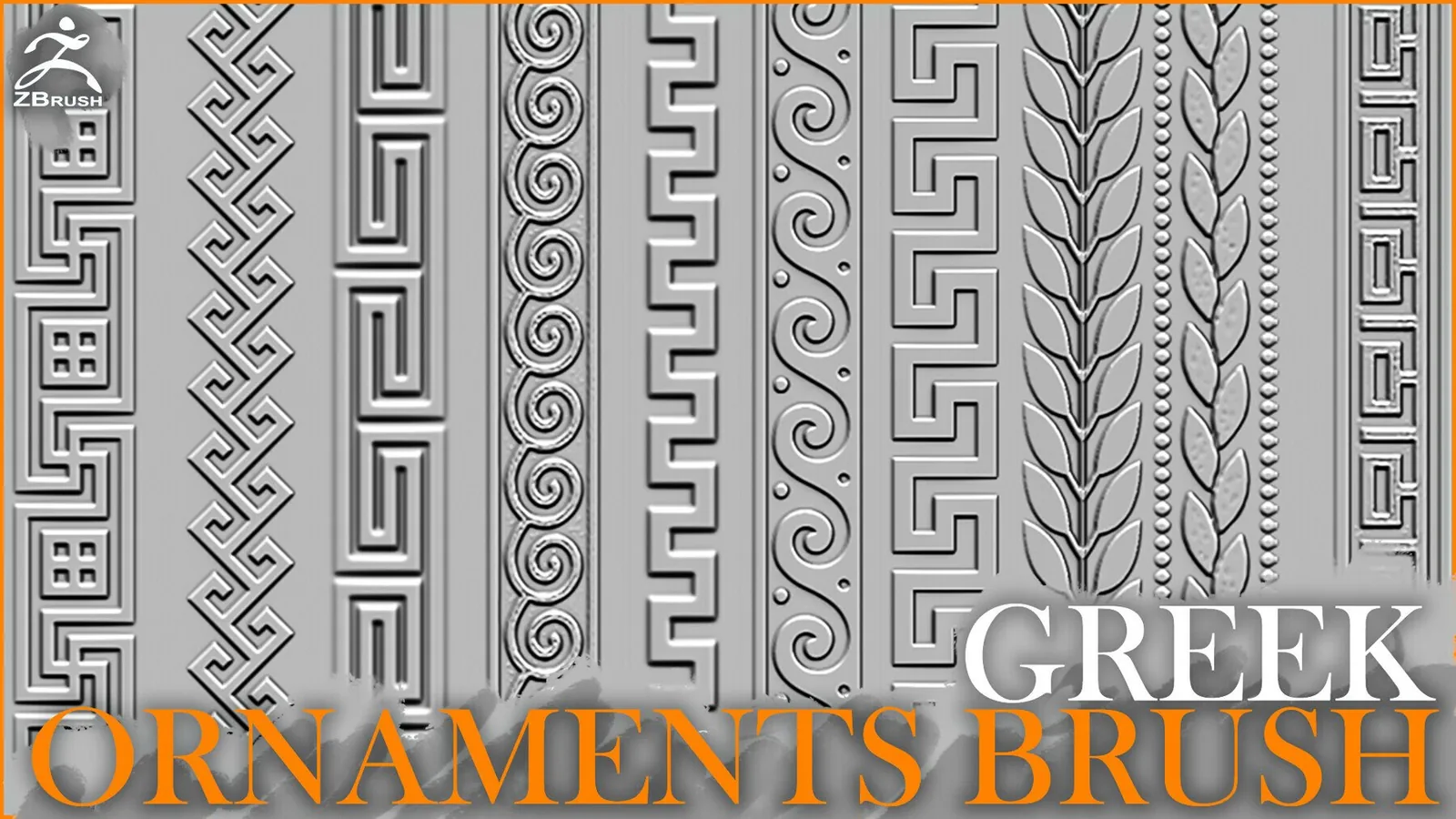
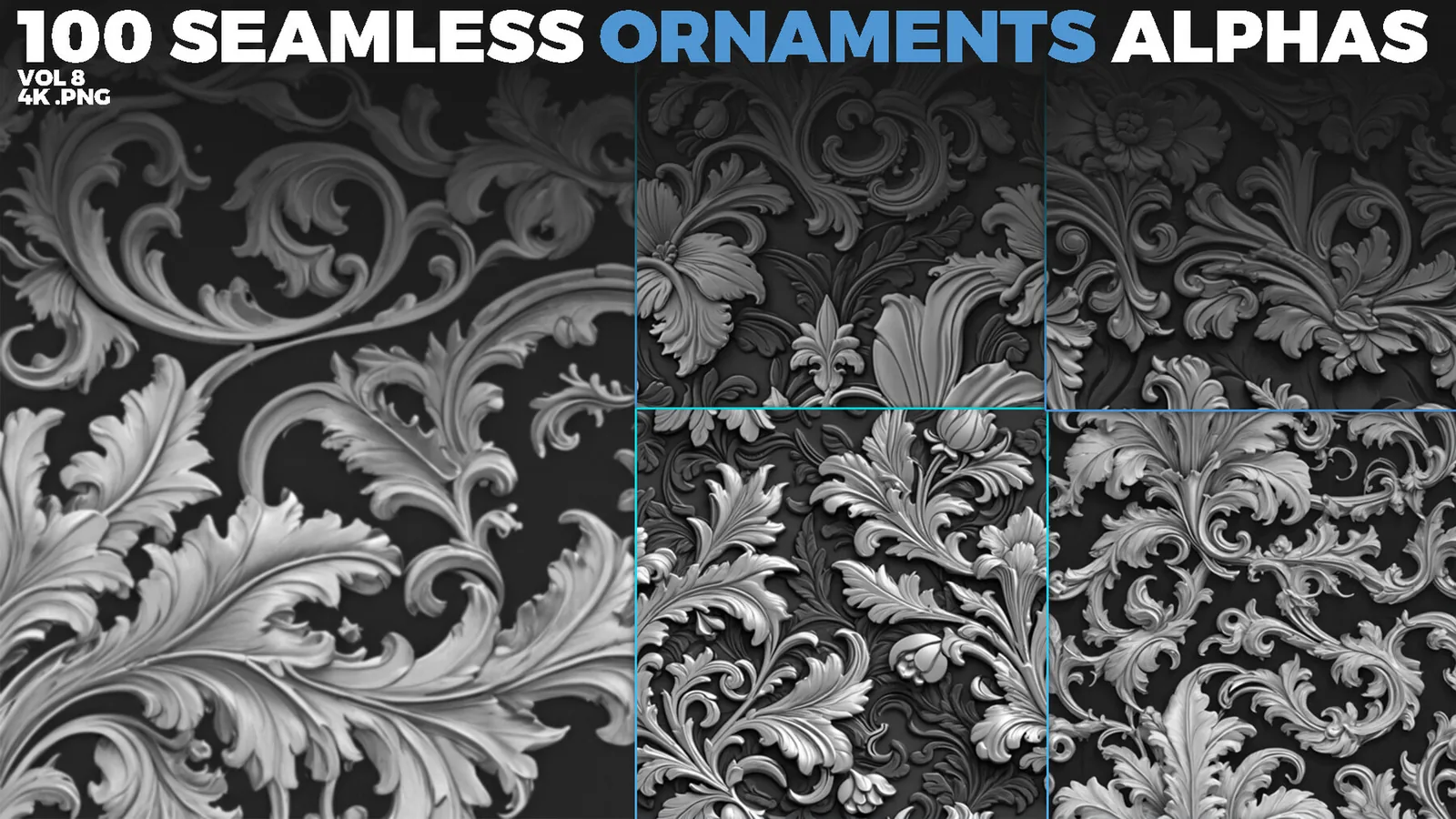
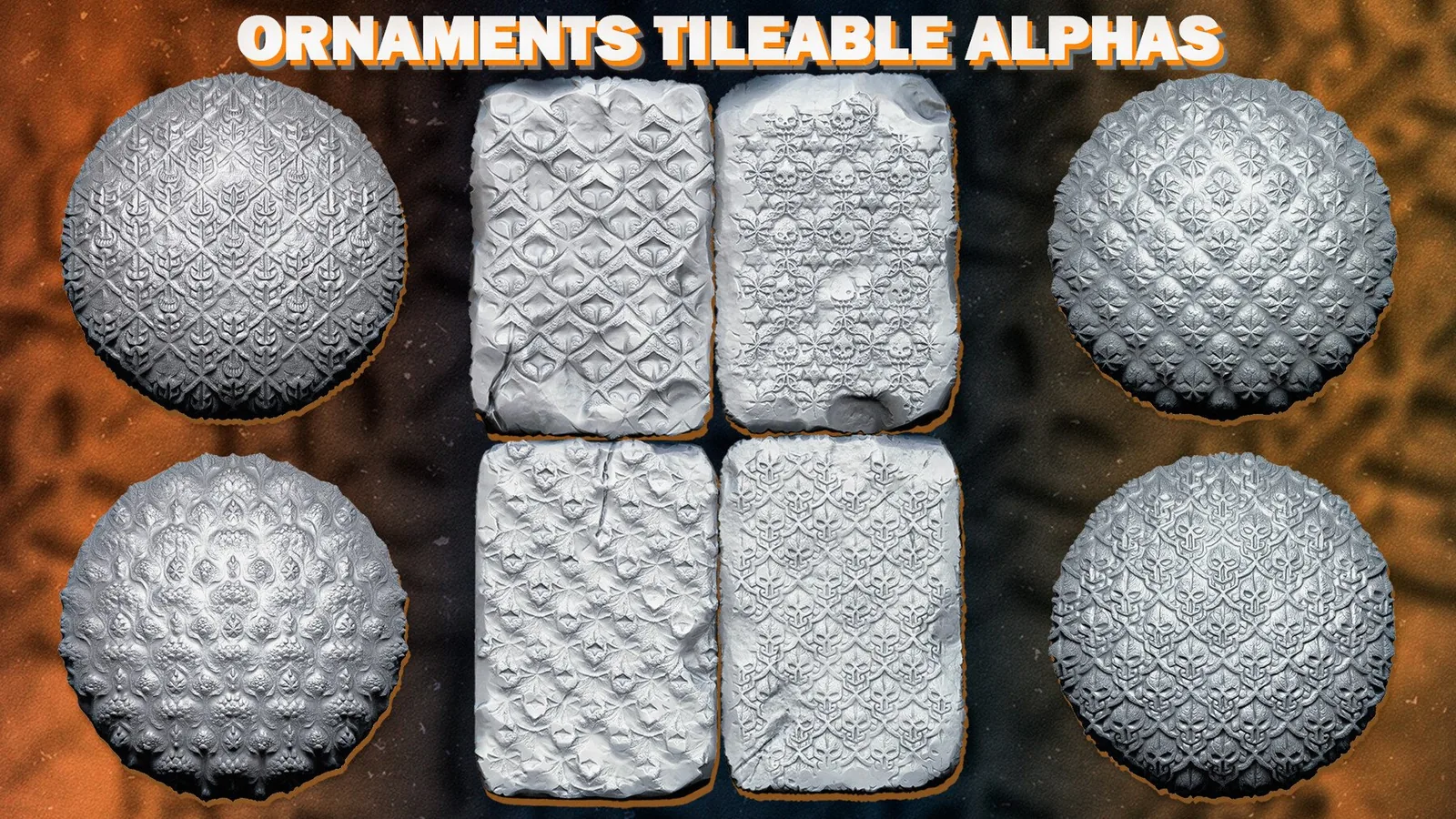
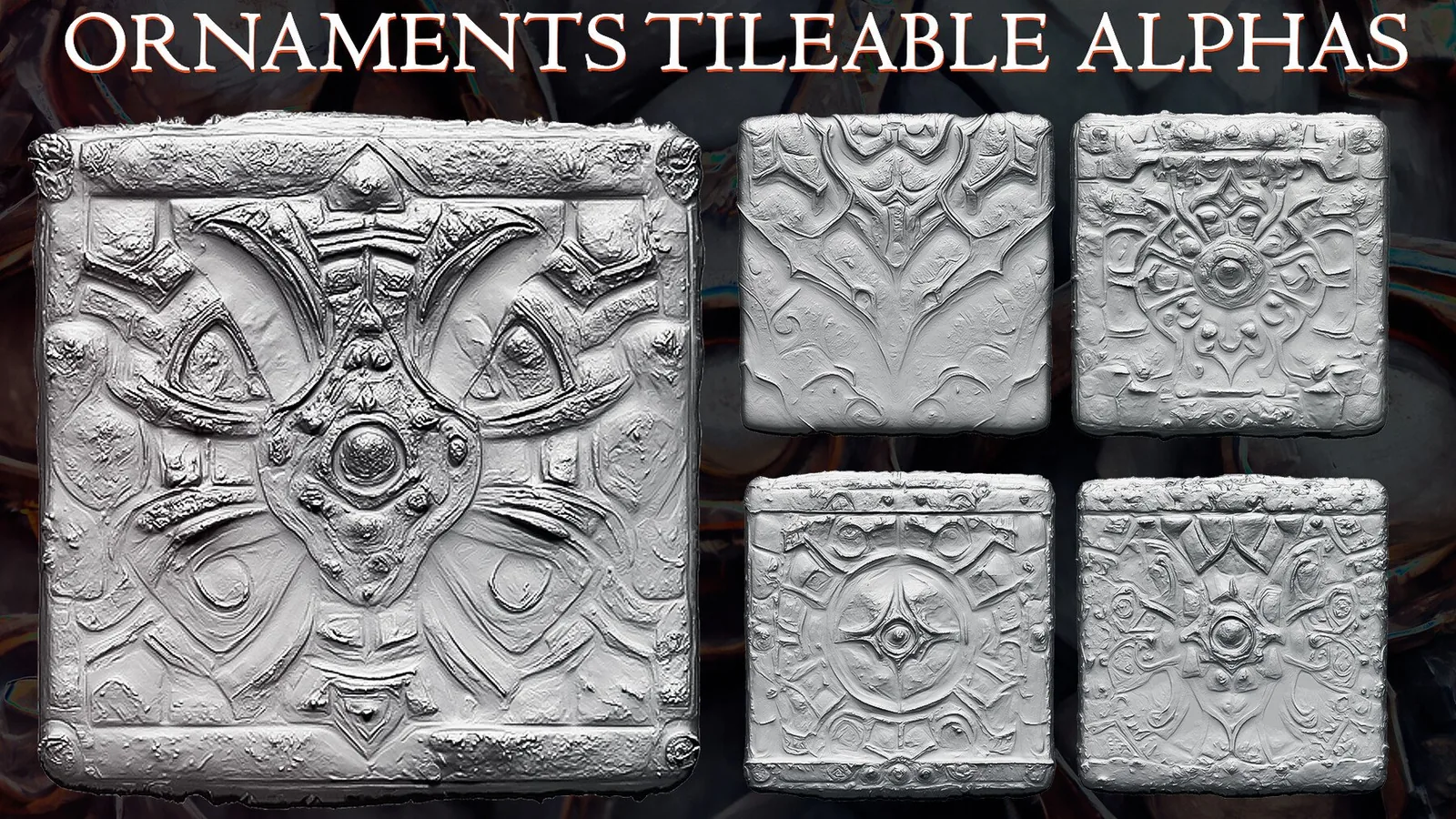
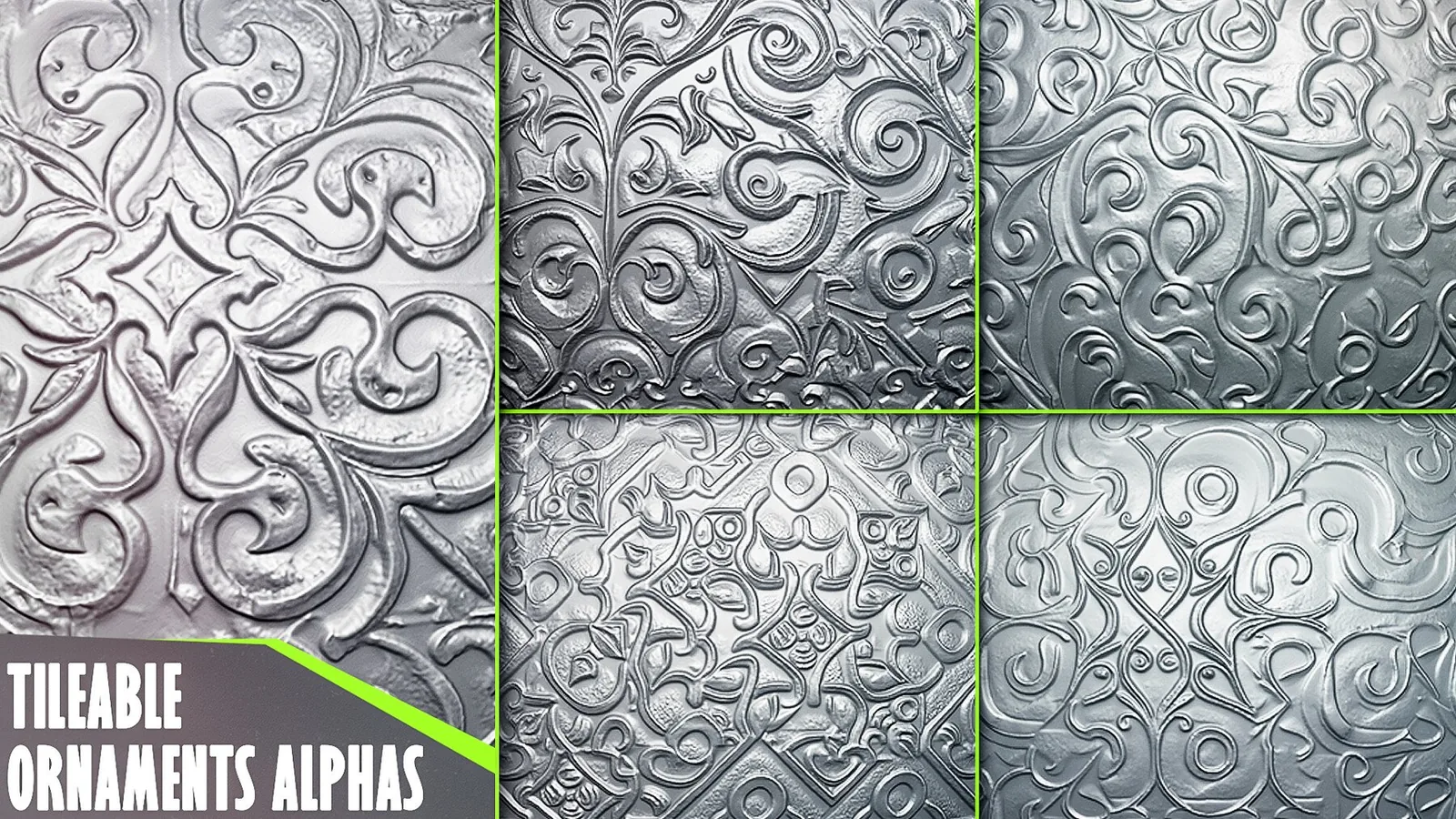
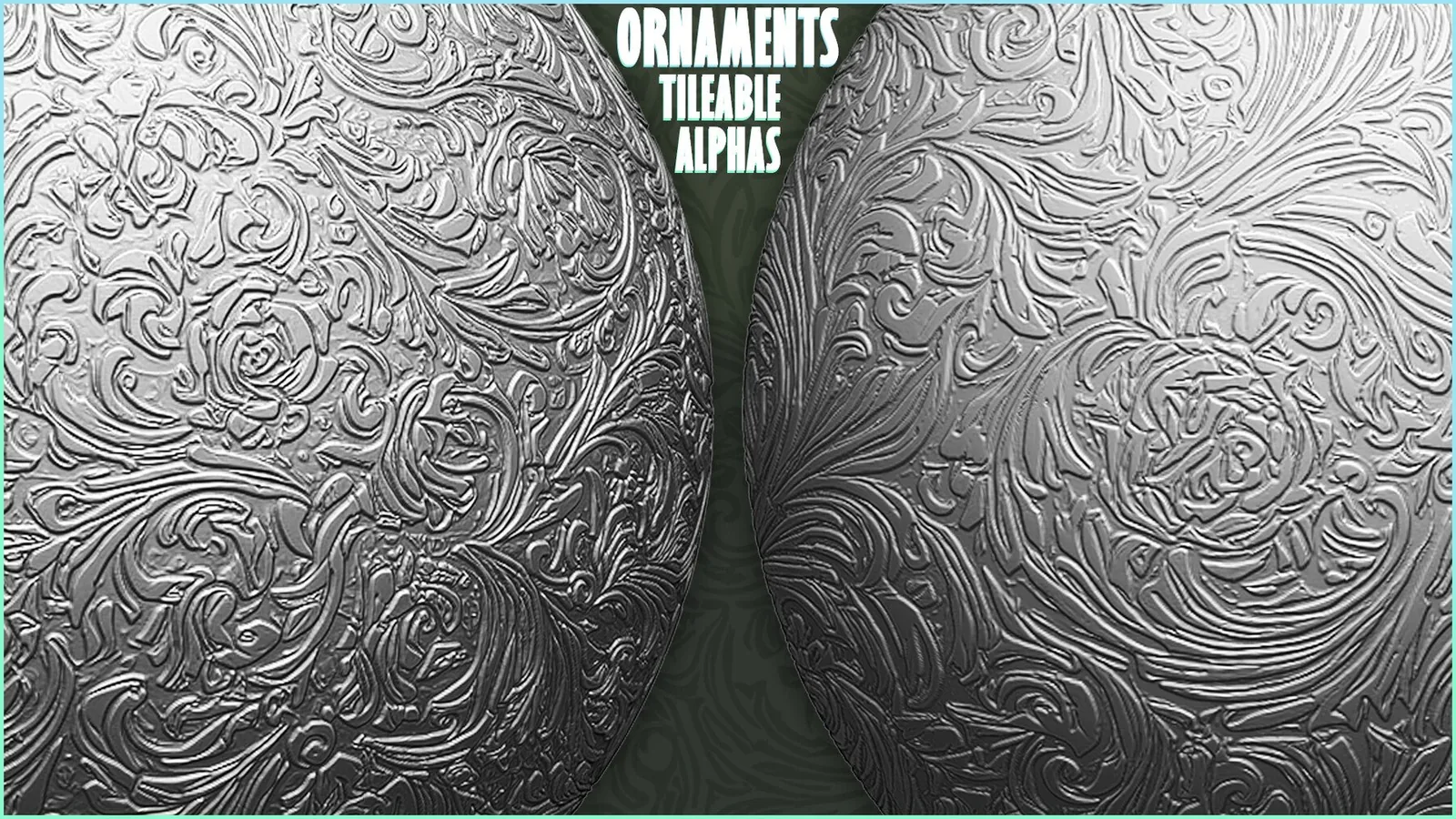
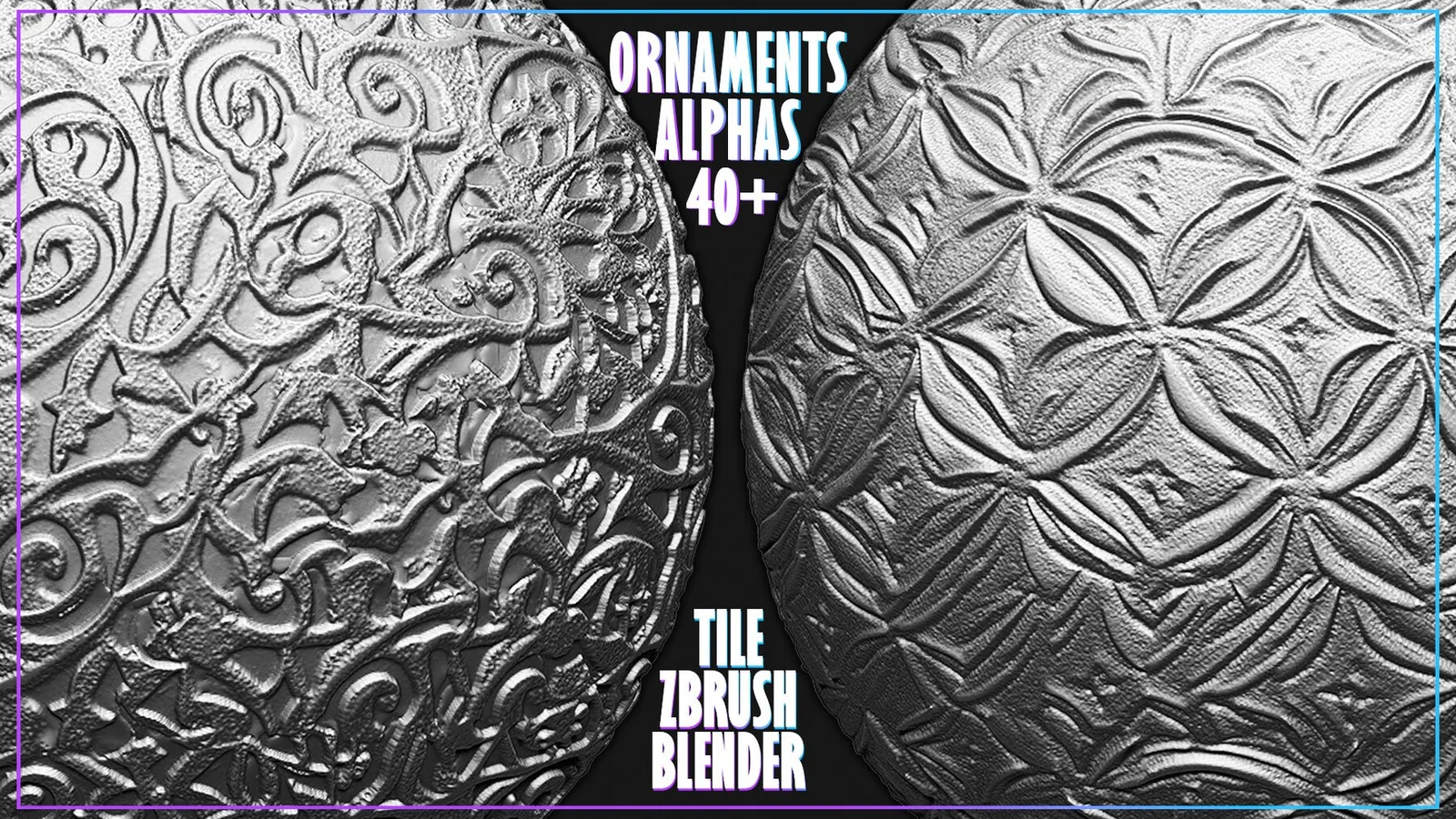
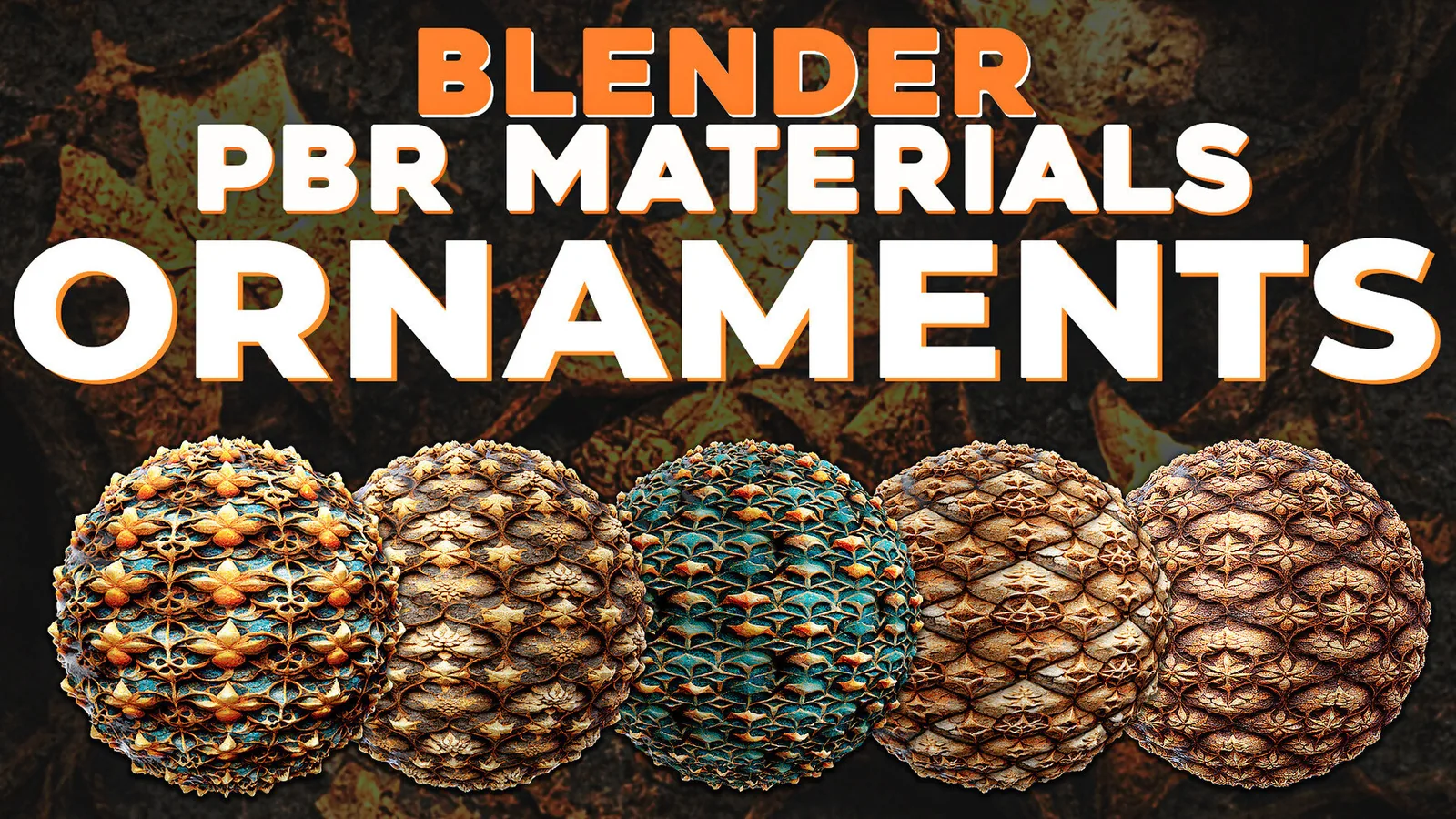
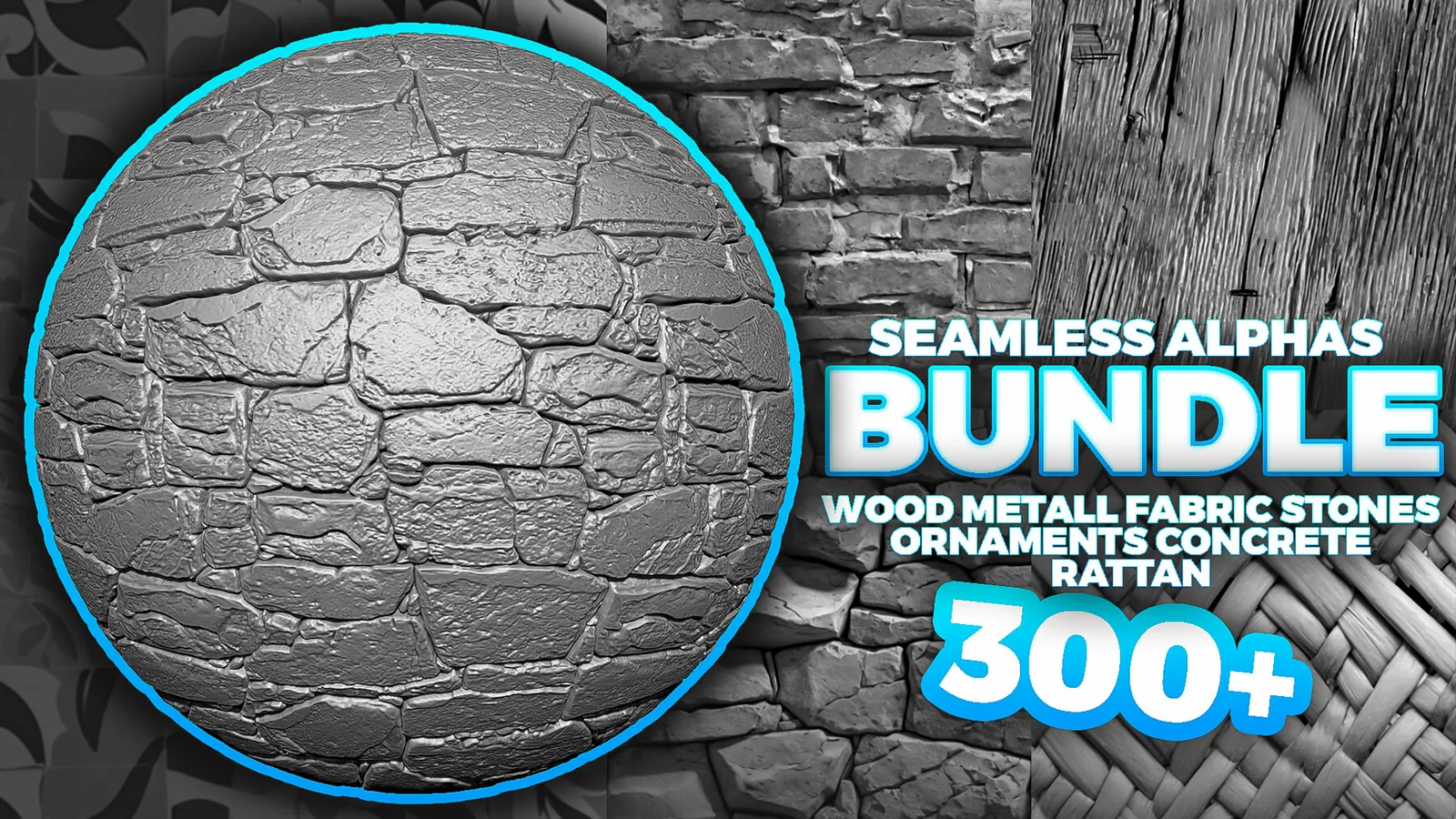
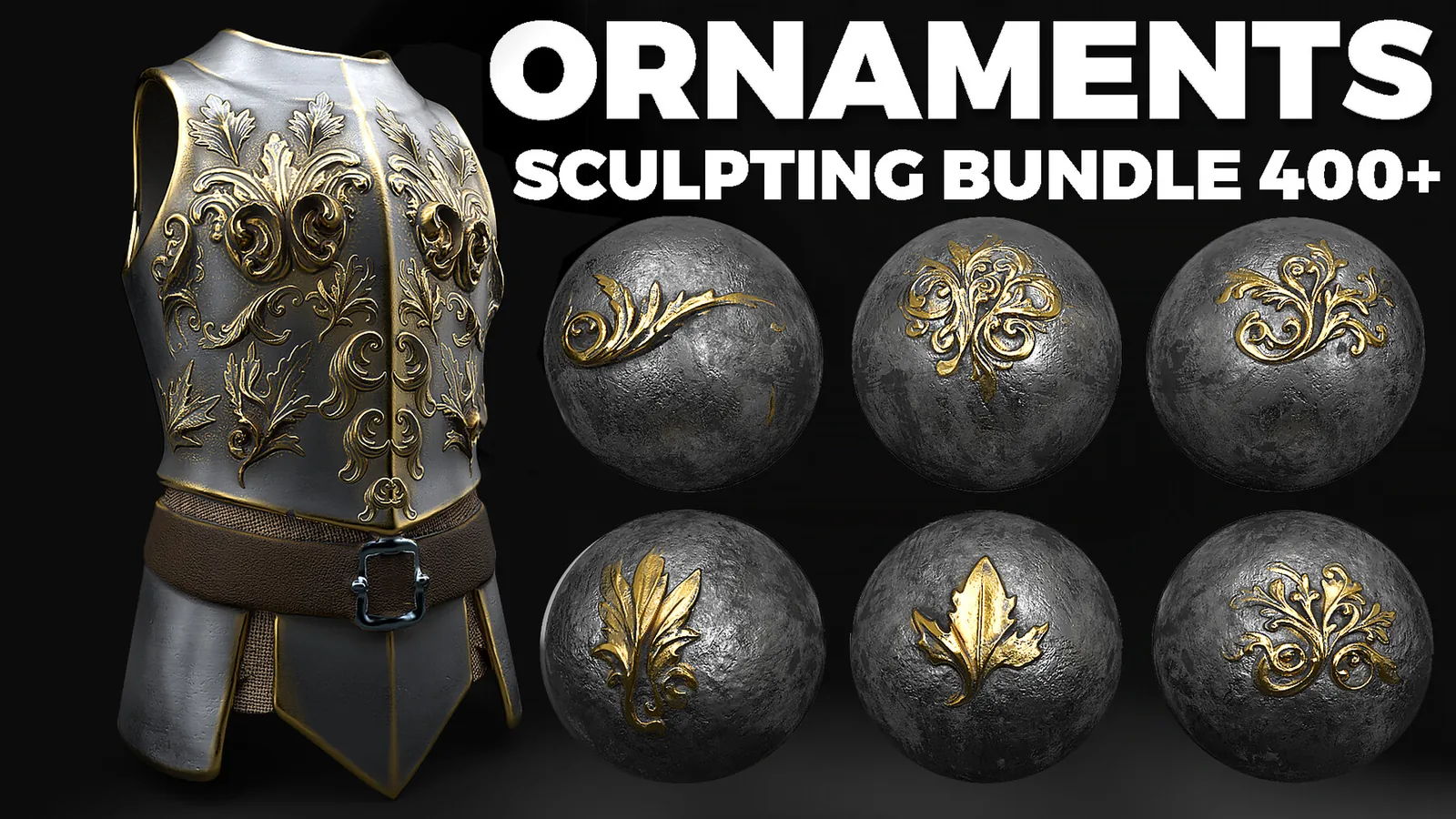
Real product previews showing how trim brushes and ornament stamps read on different surfaces.